Building a System
The calc editor is four sections on one scrolling page — Water Supply, Nodes, Calculation Areas, and Segments. The nav bar (or Ctrl+1…3) jumps between them.
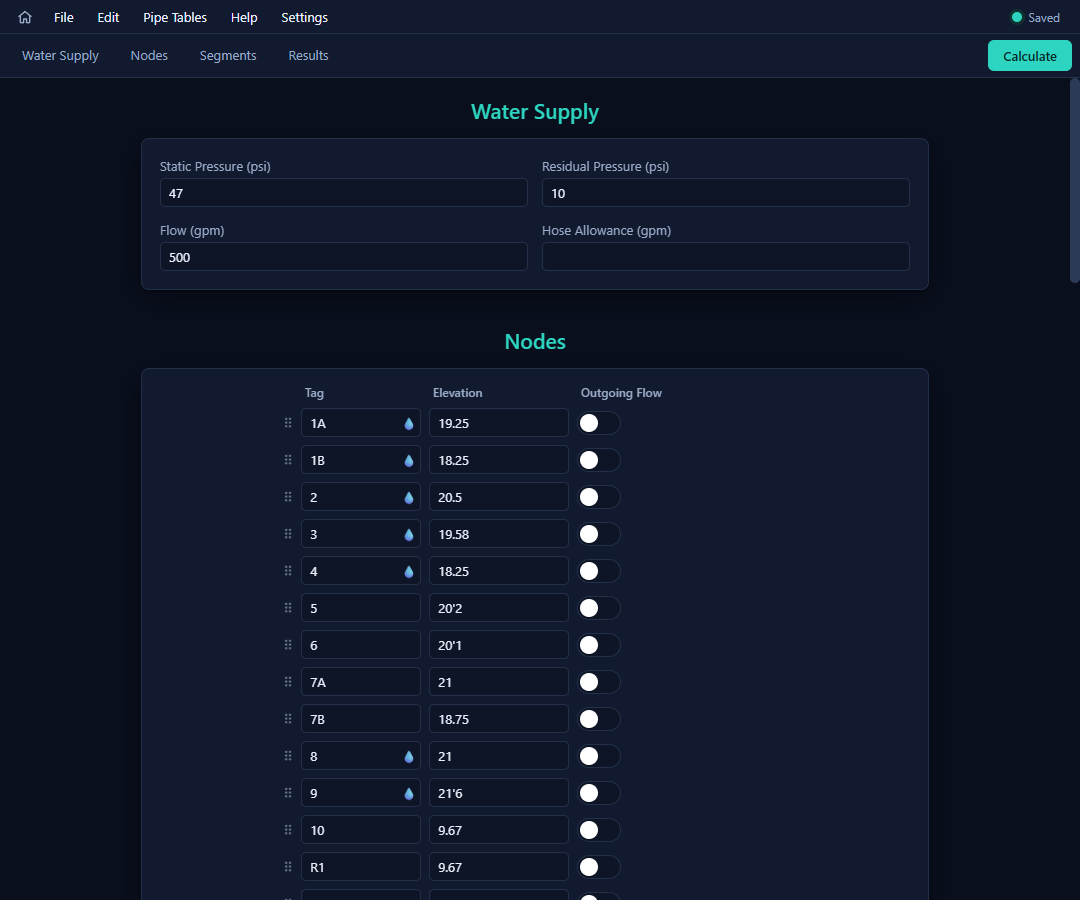
Water supply
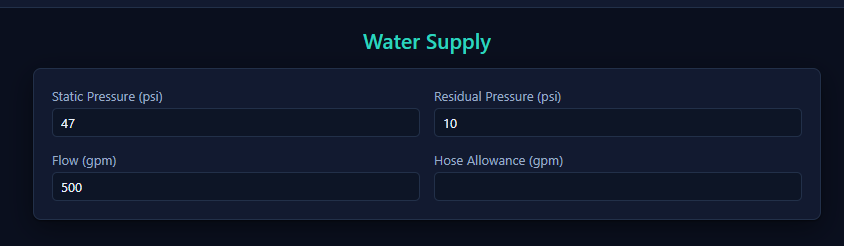
Flow test inputs: Enter either Static Pressure (psi) only, or enter Static Pressure (psi), Residual Pressure (psi), and Flow (gpm) together. Other combinations of these flow test values are not supported. Hose Allowance (gpm) is optional and may be included or omitted. When provided, available pressure at any demand is determined from the flow test curve, with the hose allowance added to the system flow at the source.
Nodes
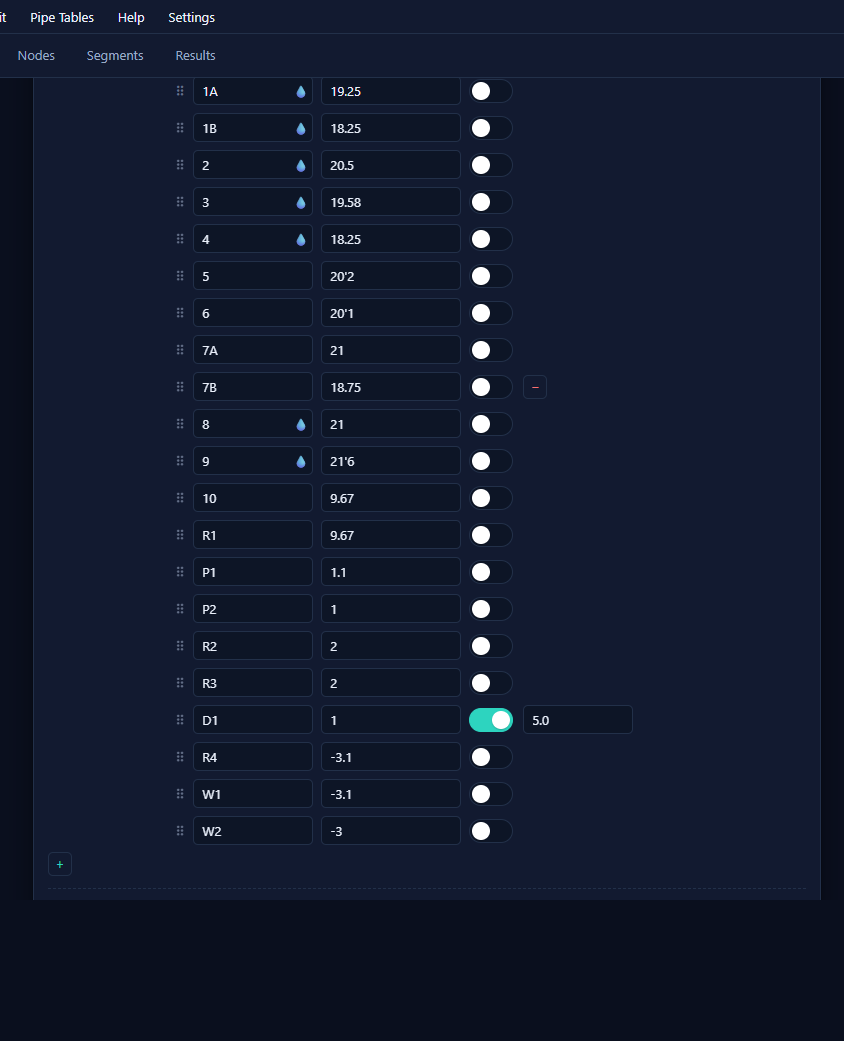
One row per point in the network:
- Tag — up to 10 characters, letters and digits, automatically uppercase. Rename freely: every segment and calculation-area reference follows the rename. A 💧 droplet appears in the cell when that node flows as a sprinkler in any calc area.
- Elevation — type it the way you'd say it:
13'6",5'2.4,5-3,10',2", or decimal feet (13.5). The value is kept exactly as typed. - Outgoing Flow — a toggle for non-sprinkler demands (domestic draw, hose stations). Switching it on reveals a gpm field, pre-seeded from Settings.
Rows: + adds (the tag auto-increments — R1 → R2 — and the elevation carries down from the previous row if that preference is on), − deletes, and the ⠿ grip drags to reorder. The Water Supply Source row is always last, can't be deleted or dragged, and its tag is editable like any other.
Calculation areas
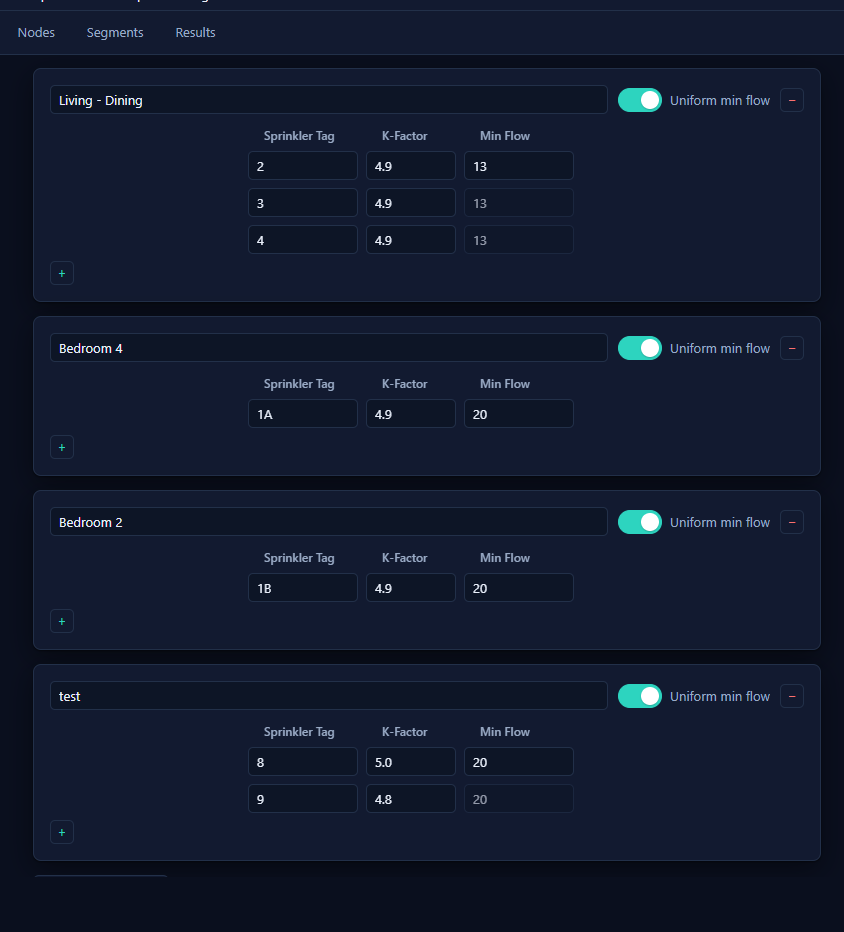
Each area names a design scenario and lists its flowing sprinklers:
- Per row: Sprinkler Tag (must match a node), K-Factor, Min Flow. New rows inherit the previous row's K-factor.
- Uniform min flow — one flow for every head: edit row 1 and the rest follow (they lock while the toggle is on).
- + Calculation Area adds another scenario — each is solved and graded independently (a two-head remote area and a four-head area can live side by side).
Segments
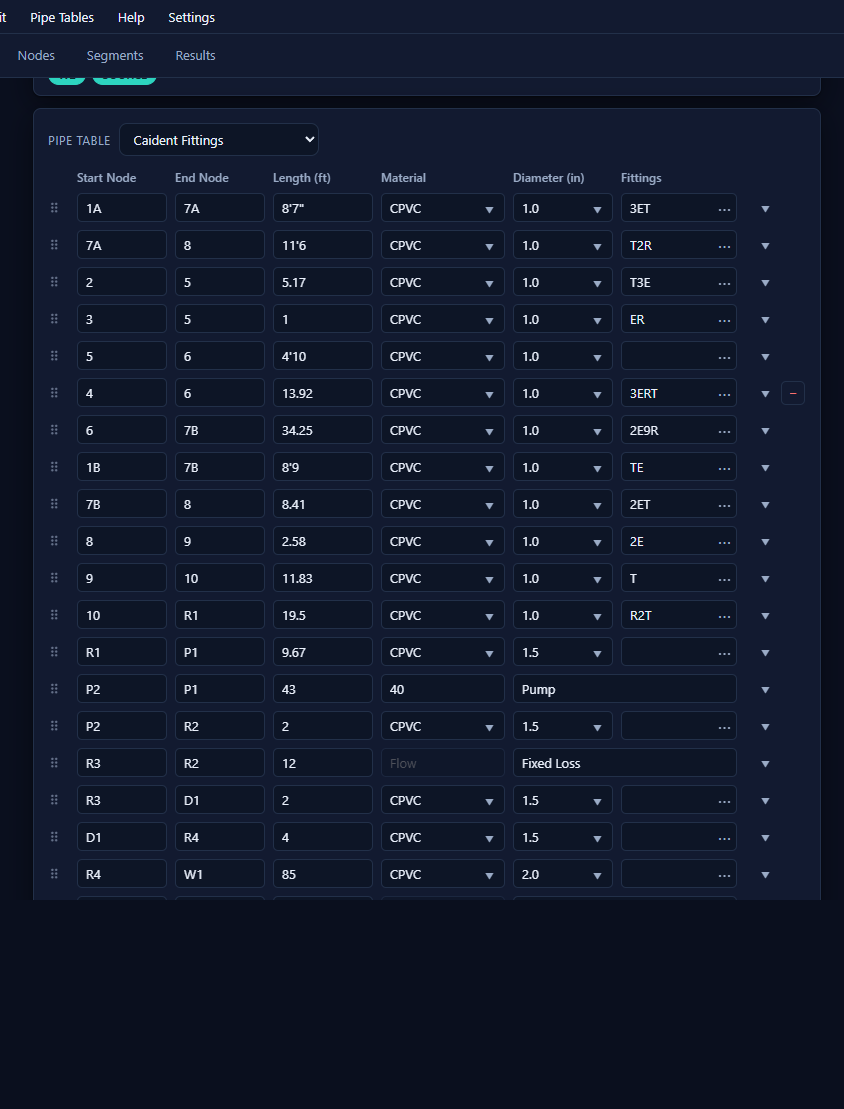
Segments connect nodes. The header row picks the project's pipe table; while a Length cell is focused, a live readout shows both end elevations and the elevation difference.
Pipe rows — Start and End node tags, Length (same friendly formats as elevations), Material (from the pipe table), Diameter (from the material's list, or type a custom value), and Fittings.
- The Hazen-Williams C value comes from the material in the pipe table — you'll see it in results, and you can customize it via your own pipe table (chapter 10).
- Fittings: type the compact code directly (
3R5T= three of fitting R, five of T; a count of 1 omits the number), or click ⋯ for the picker:
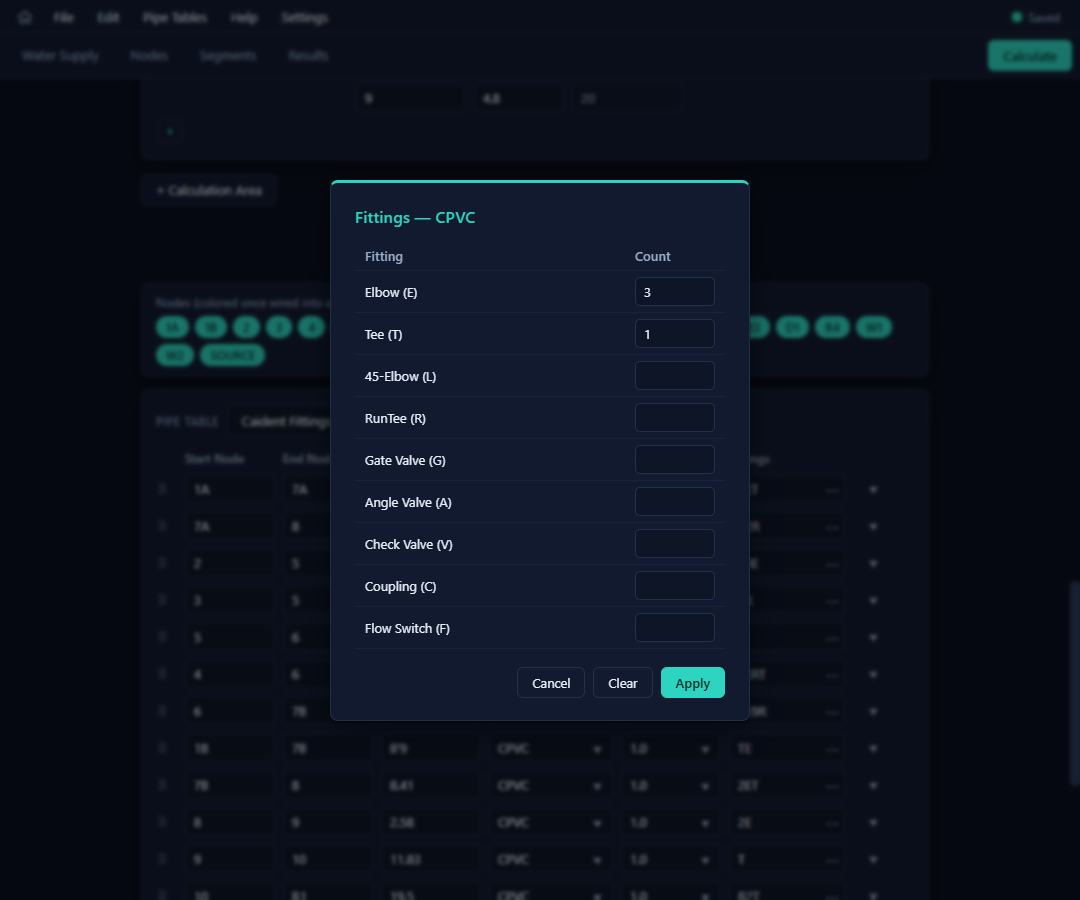
Counts run 0–99 per fitting, up to five fitting types per segment. Clear empties the cell; Apply writes the code back.
Pumps and fixed losses — add with + Pump / + Fixed Loss, or convert any row with the small ▾ type caret. Both take Start/End tags plus Pressure and (pumps only) Flow. In results a pump reports rated / available / required pressure.
Above the segments card, the Nodes chip strip shows every tag, coloring each one as it gets wired into a segment — a quick visual check that nothing is left floating. Toggle it in Settings.
Where the numbers go
Everything you type is kept exactly as typed — 5'2.4" stays 5'2.4" in the file and on screen. Parsing to decimal feet happens only when the calculation is sent to the solver, so what you see is always what you entered.