Exporting PDF Reports
Export to PDF (Results nav bar), Ctrl+E, or File → Export PDF all open the export dialog.
The cover sheet
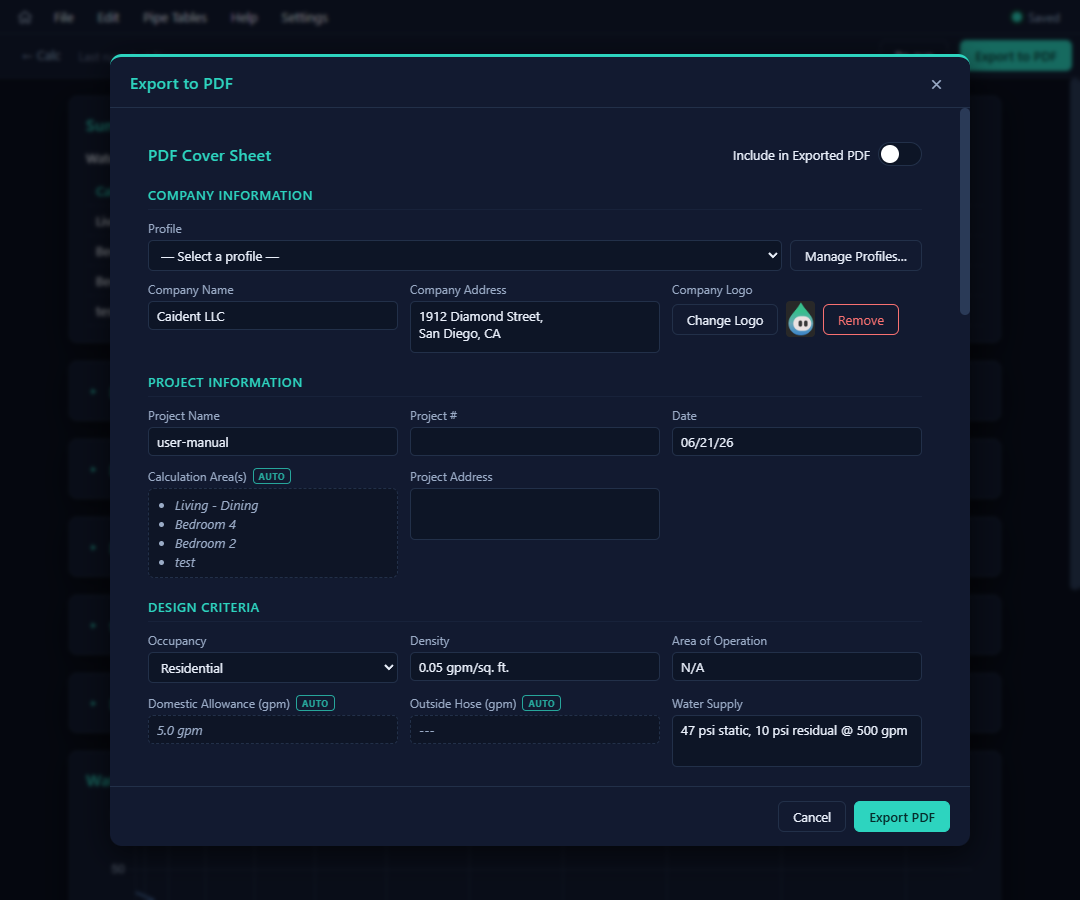
The dialog is the cover-sheet editor, with an Include in Exported PDF master toggle. Three kinds of fields:
- auto (badged) — filled from the calculation and read-only: calculation areas, sprinkler counts, flows, pressures, safety margins, domestic allowance.
- prefilled — sensible defaults you can overtype: project name (from the file name), date, water supply.
- manual — yours to fill: project number, address, sprinkler make, temperature rating.
Sections, top to bottom:
| Section | Highlights |
|---|---|
| Company Information | Pick a Profile (set up in Settings — chapter 13) to stamp your company name, address, and logo in one click; Manage Profiles… jumps there. Hand-editing any field detaches it from the profile. |
| Project Information | Name, number, date, address, and the auto list of calculation areas. |
| Design Criteria | Pick the Occupancy (Residential, Light Hazard, Ordinary I/II, Extra I/II, Storage, Fire Flow, Other) and the standard Density and Area of Operation fill themselves — editable if your criteria differ. |
| Calculation Summary | Per area: sprinkler make, K-factor, temp rating, plus the auto head count, flows, pressures, and margin. Optionally include Base of Riser data — pick the node and its flow/pressure fill in automatically. |
| Notes | Free text, with a live line counter — "N of M lines used". Text past the printable cap is flagged and won't print. |
Exporting with empty fields is allowed — you'll get a list of what's blank and a Continue / Cancel choice.
One PDF or several
The default is one PDF per calculation area, named <your name> - <area>.pdf — the format AHJs usually want. Prefer a single combined document? Flip "Export all calculation areas as a single PDF" in Settings.
The export itself
- Export PDF → native Save dialog, pre-named from the project (and area).
- A brief "Exporting PDF…" overlay — the report is generated locally, compressed, and written.
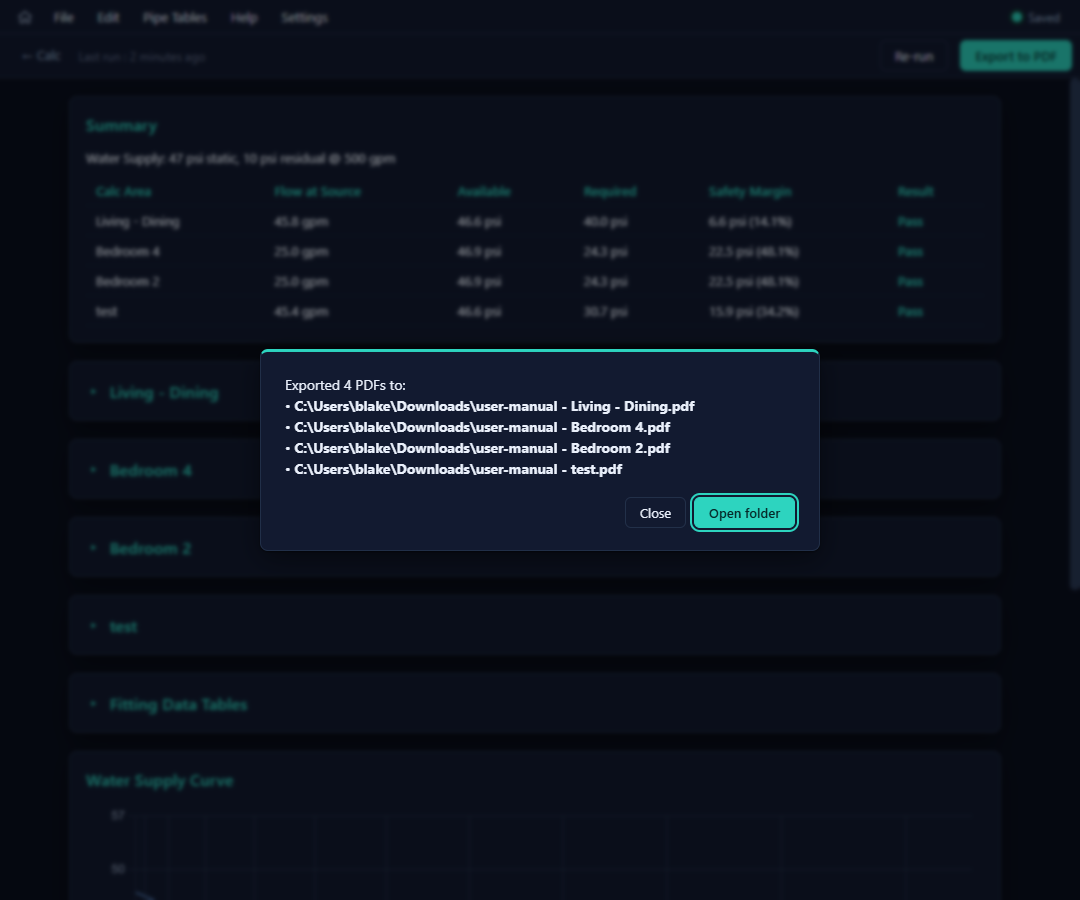
- A confirmation lists the exact path(s), with Open folder.
Each report contains: the optional cover sheet, the run overview, node and segment analysis tables, the fitting-data reference, and the water-supply curve page.
Custom pipes with long imported names are aliased to CP1, CP2, … in the segment tables to keep columns readable — the fitting-table header doubles as the legend (CP1 = <full name>).
"The PDF file is currently open in another program." — Windows won't let the app overwrite a PDF that's open in a viewer. Close it and export again.