Working with Caident Design
Caident Design (the companion CAD app) can hand its piping model straight to CaidentCalc over a secure local link — no files, no re-typing. Both apps just need to be running on the same machine. (Caident Design has a user manual of its own — see the Caident Design User Manual for drawing the system, placing sprinklers, and the hydraulics dialog that initiates the send.)
Receiving a design
In Caident Design, the hydraulics dialog offers Send to CaidentCalc. When it arrives:
- The CaidentCalc window raises itself so you see the request.
- You're asked first:
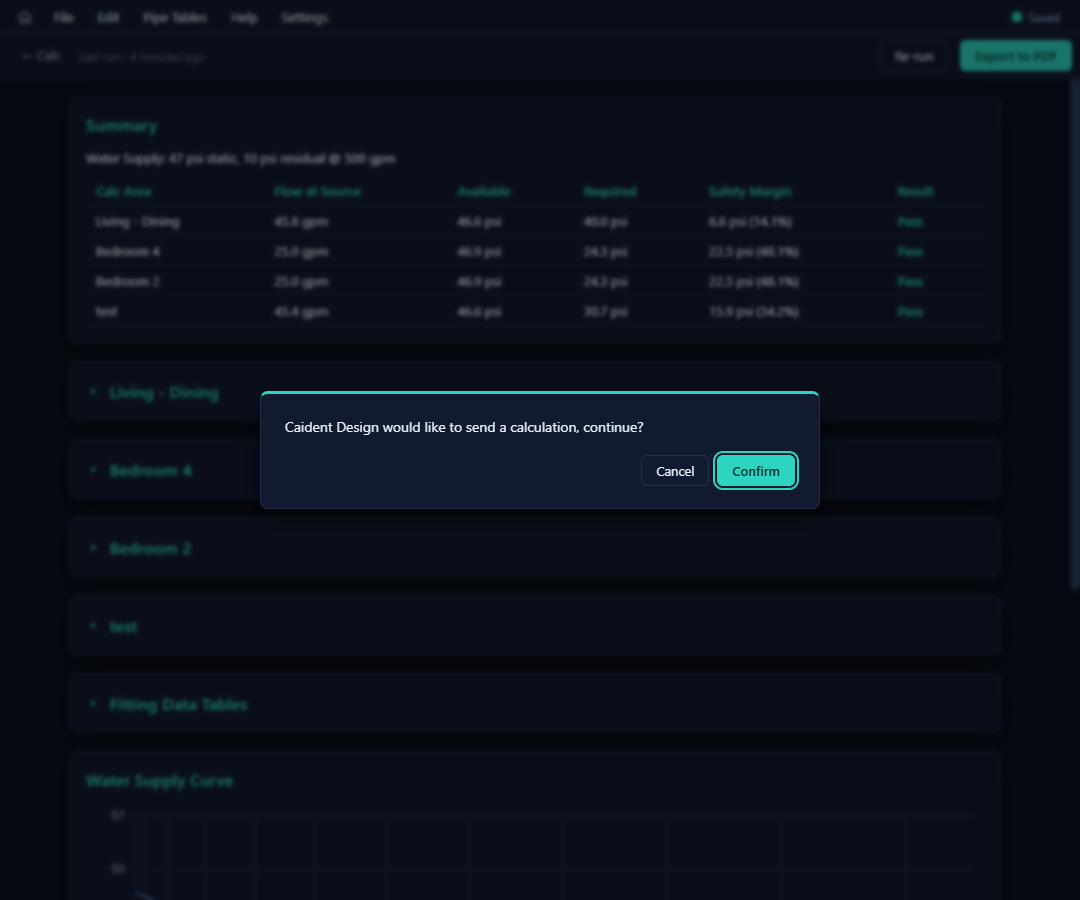
Caident Design would like to send a calculation, continue?
- Accept, and a brief "Loading design data…" overlay runs while the design's nodes, pipes, and calculation areas populate the calc editor — ready to review, adjust, and calculate like any other project.
Send to CaidentCalc (Auto) skips the prompt's manual run: the calculation executes immediately and the per-area pass/fail summary is pushed back to Caident Design, appearing in its results dialog. Either way, the full detail — segment analysis, curve, PDF export — lives here in CaidentCalc.
Staying in sync
If the designer keeps editing in Caident Design after a send, Design notifies CaidentCalc and a banner appears above the calc editor:
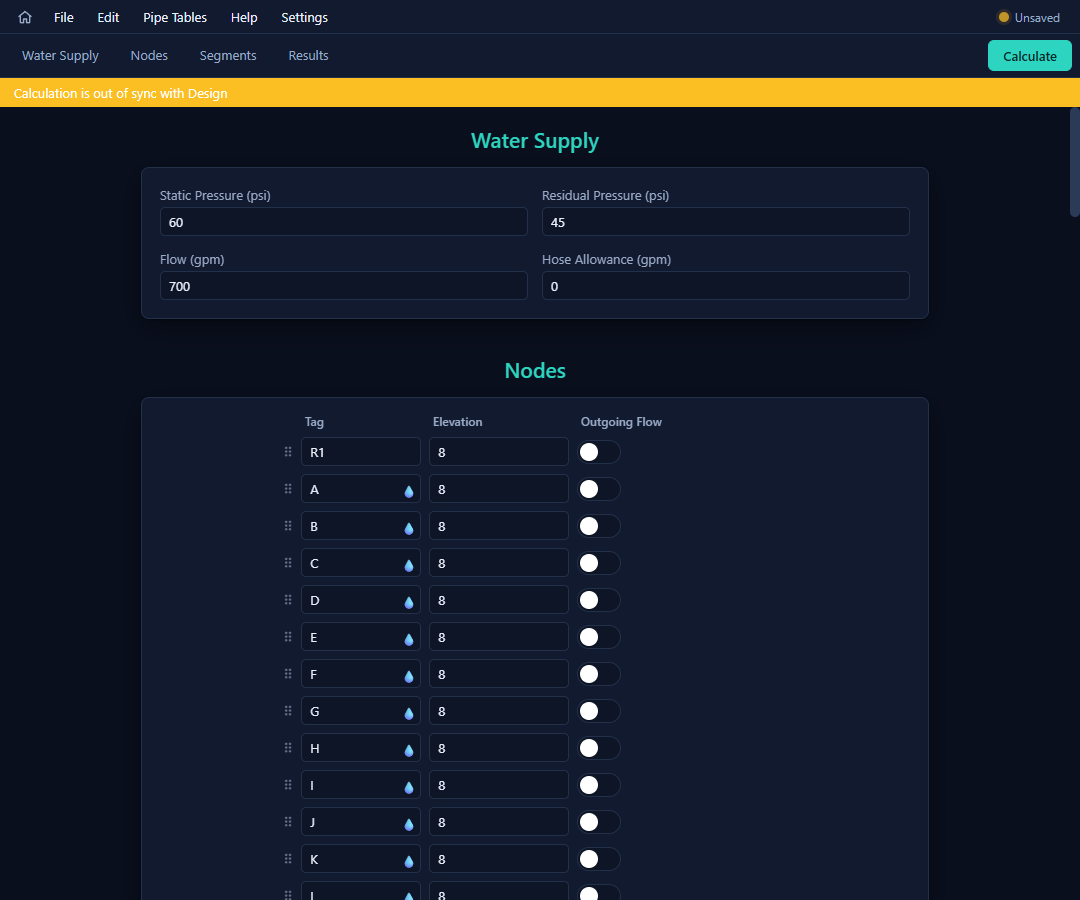
Calculation is out of sync with Design
It clears the next time Design sends the updated model. (The banner is informational — the numbers you calculated are still the numbers for the model you received.)
Requirements and troubleshooting
- Both apps installed and running; CaidentCalc must be signed in (incoming sends are refused on the sign-in screen).
- The link is local to this machine (CaidentCalc listens on port 7331, Design on 7332) and every message is cryptographically signed — nothing leaves the computer.
- Design's "Failed to send — is CaidentCalc running?" means exactly that: start CaidentCalc and re-send.
- A populated project arrives unsaved — save it as a
.ccalcto keep it.
Caident Design's own Quick Calc button uses this same solver on the server without CaidentCalc running at all — the two paths always agree. Use a Send when you want the full workup: editable inputs, complete result tables, and the PDF report.
Where to read more
Everything on the sending side — drawing the plan, auto-placing sprinklers, routing the pipe network, and the "Hydraulic Calculation" dialog whose Send buttons land here — is covered in the companion Caident Design User Manual, chapter 11.