Pipe Tables
Every friction number traces back to a pipe table: materials, diameters (nominal and actual ID), Hazen-Williams C values, and fitting equivalent lengths. CaidentCalc ships with the Caident Fittings table and lets you build your own.
Viewing
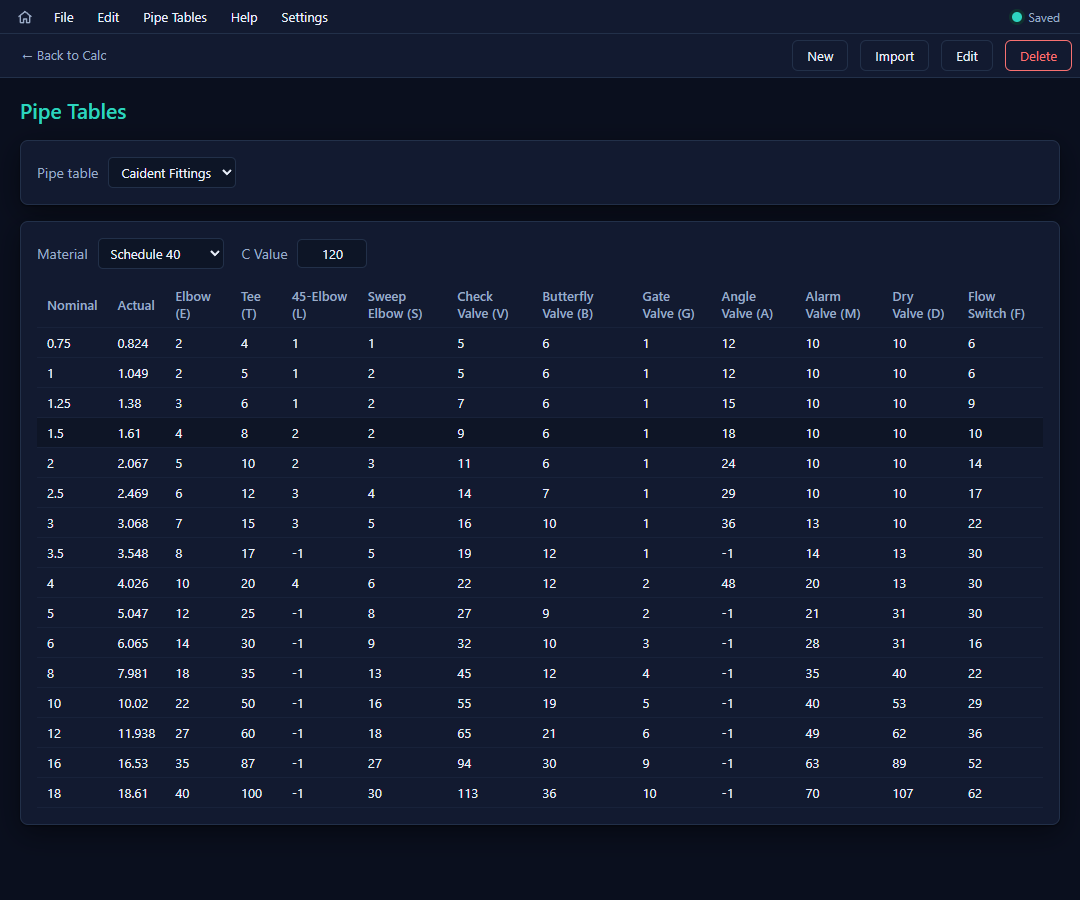
Pipe Tables → View opens the viewer: pick a table, pick a material, and read its C value and the fitting grid — one row per diameter, one column per fitting ("Elbow (E)", "Tee (T)", …).
Creating and importing
- New — name it and optionally base it on an existing table (start from Caident Fittings to tweak the standard values). The built-in's name is reserved.
- Import — bring in a Caident
.cpipeor a HASS.piptable. - Delete — with a confirmation; the built-in table can't be deleted.
Tables live in C:\CaidentCalc\PipeTableData\ (shown read-only in Settings). Each project remembers which table it uses — the selector above the segments table (chapter 5).
Editing
Edit opens the editor on any table except the built-in (to customize that one, create a New table based on it).
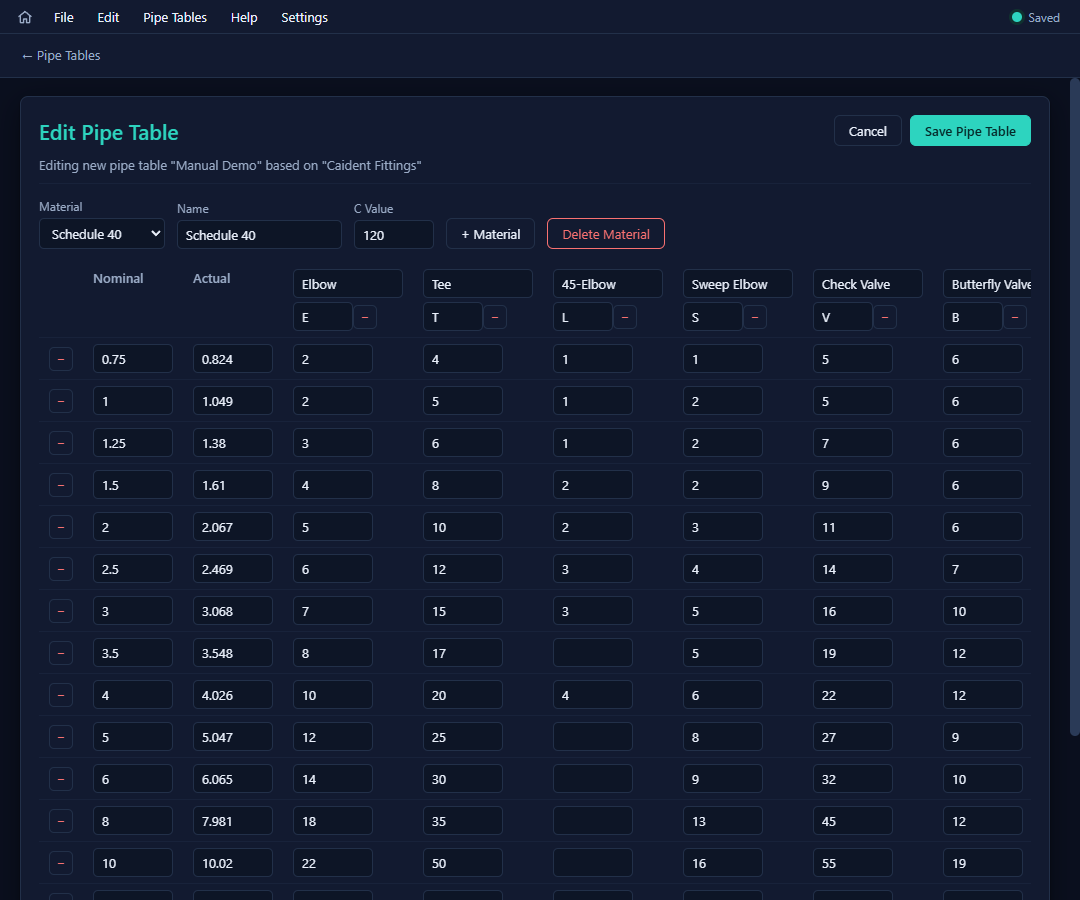
- Pick or add a Material; set its Name and C Value (restricted to values between 40 and 200).
- The grid edits like a spreadsheet: + Add diameter row, + Add fitting column (each column has a name and a short letter code — that letter is what fitting strings like
3R5Trefer to), numeric cells throughout. - Delete Material and the row/column − buttons use a two-click confirm — the button re-labels to "Click again to delete" and disarms after three seconds.
- Save Pipe Table validates everything first and reports problems before anything is written.
Projects and pipe tables stay consistent: a segment's material, diameter, and fitting letters are all validated against the project's chosen table — switch tables and the error bar will point out anything that no longer resolves.