Getting Started
Installing
CaidentCalc ships as a signed Windows installer. It registers two file types — .ccalc projects and .cpipe pipe tables — so both open with a double-click. The window opens at 1080 × 900 (minimum 940 × 700).
Signing in
The app starts at the sign-in screen. Enter your Caident account email and password and click Sign In.
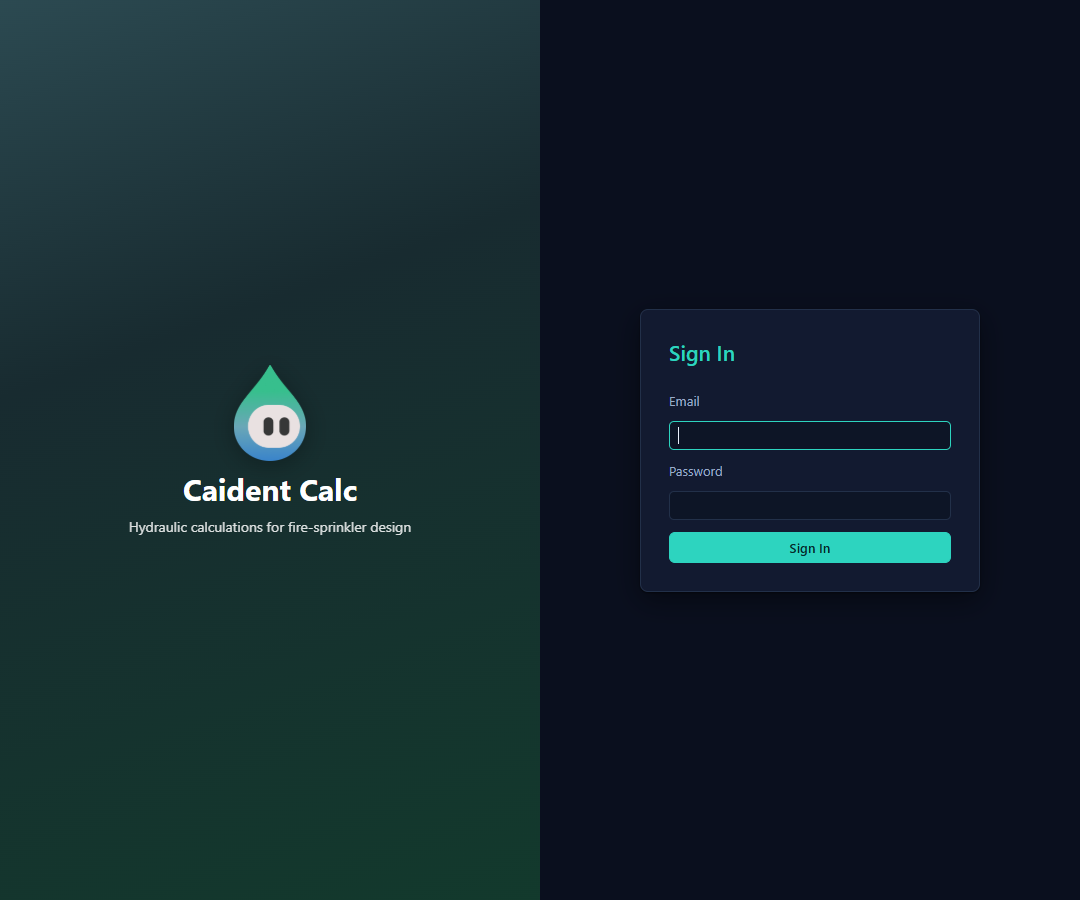
- Validation problems show under the field; server problems show below the form.
- Accounts are managed on the Caident web app — the desktop app never creates them.
- You stay signed in between launches — the session is stored securely on this machine.
- To sign out later: the menu bar's Settings → Sign Out, or Settings page → Account → Sign Out.
Have a license key instead?
Older installations use a 32-character license key. If your device has never signed in by email, the sign-in screen offers "Have a license key instead?" — switch modes, paste the key, and click Register. Key problems are reported plainly: already active on another device (unregister it there first), expired, or not found.
Email sign-in is the way forward. Once a device signs in by email for the first time, the license-key option is retired on that device, and license-key users see an occasional prompt offering to switch (it requires a CaidentCalc seat assigned to your account on the web app).
Terms & Conditions
The first activation shows the Terms & Conditions. Accept enables only after you've scrolled through them. Declining backs out of the activation entirely — register or sign in again when you're ready to accept.
Organizations, seats, and devices
Access is licensed per organization. If your organization doesn't include CaidentCalc, an Access required screen appears:
- More than one organization? Pick another from the dropdown and Switch organization.
- No subscription? Contact your organization owner.
- Device limit reached? Free a device from the Caident web app, or switch organizations.
The pipe table
On first use CaidentCalc downloads its built-in pipe table — Caident Fittings — into C:\CaidentCalc\PipeTableData\. It holds the standard materials, diameters, Hazen-Williams C values, and fitting equivalent lengths every calculation reads from. Chapter 10 covers viewing, extending, and importing tables.
Automatic updates
On every launch, CaidentCalc checks for a newer version and, if one exists, downloads, installs, and restarts silently — no prompt, no progress bar.
If the app takes unusually long to appear, or closes and reopens by itself right after launch, that's an update being applied. It happens before any project is open, so no work is at risk.
A five-minute tour
- Home → New Project (Ctrl+N).
- Enter the water supply — static, residual, flow.
- Add nodes (sprinklers and junctions, with elevations), then connect them with segments (pipes, and pumps or fixed losses where needed).
- Define a calculation area — which sprinklers flow, at what K-factor and minimum flow.
- Calculate (Ctrl+T). Fix anything the error bar flags; the solver runs per area and lands you on Results.
- Read the Pass/Fail summary and the segment analysis; Export to PDF (Ctrl+E) when it's ready to submit.
The rest of the manual walks each step in depth.