Annotations & Drawings
Two kinds of "extra ink" live on top of the design: annotations (dimensions, notes, callouts — things that explain) and drawings (plain linework — things that depict). Both export to DXF and print on sheets.
Annotations
All four annotation tools share the color options (Black / Red / Blue / Green), and View → Show annotations hides or shows them all at once.
| Tool | How it works |
|---|---|
| Dim | Two clicks along what you're measuring. The measured length is live — it re-reads if you move the endpoints. Inspector: signed Offset (0.25 ft steps) pushes the dimension line away from the measured line; Flip mirrors it to the other side. |
| Text | Click a location, type the note, pick size S / M / L and color. |
| Leader | Click what you're calling out, then where the note should sit, then type the text. Arrowhead, elbow, landing, and text are one entity — they move together. |
| Circle | Click center, then radius. The Inspector reads out radius and diameter. |
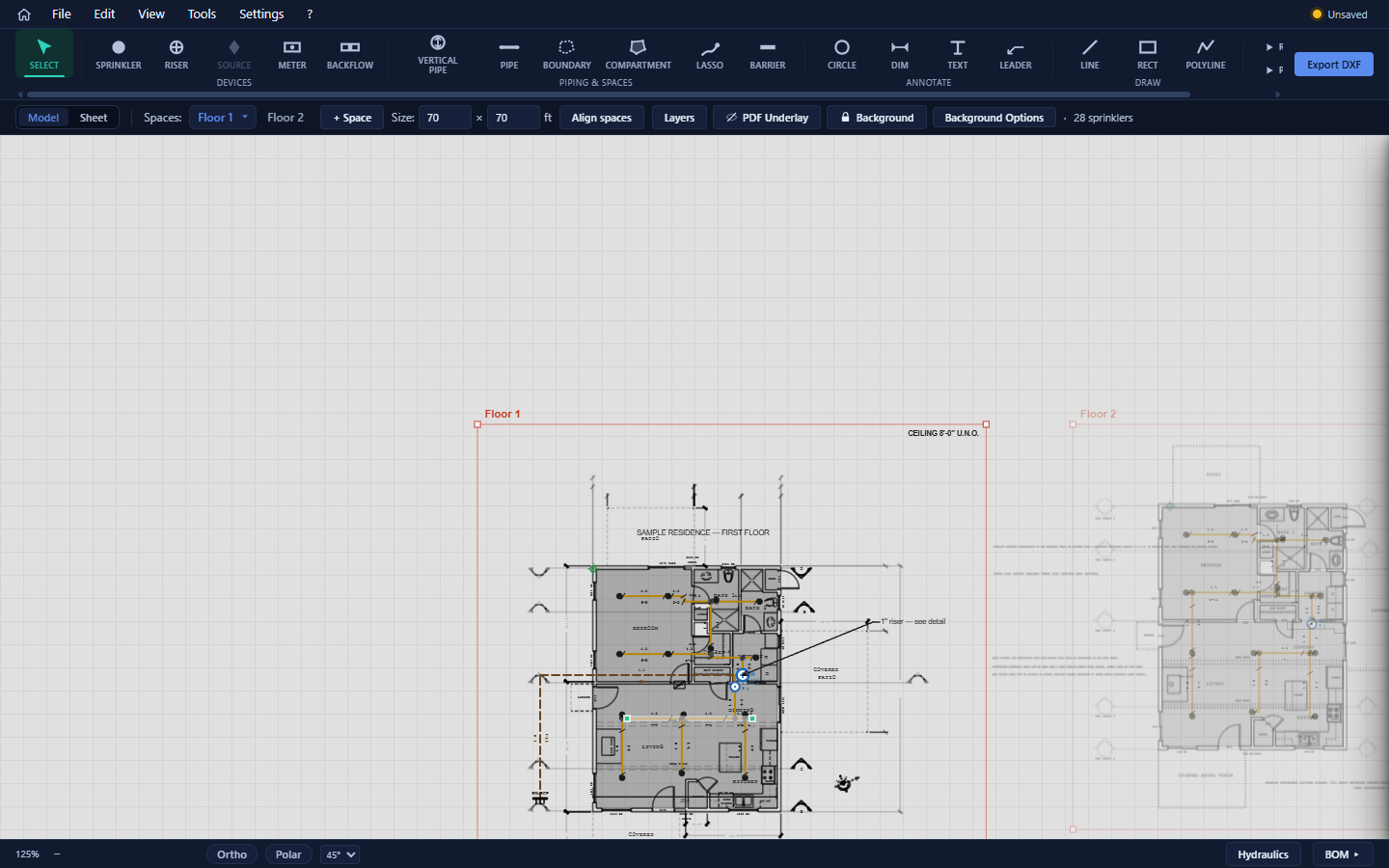
Editing: double-duty via Inspector or right-click — Edit text…, size, color, dimension Flip, delete. Text and leader notes reopen their editing dialog.
Older projects may contain line annotations (arrows). They still load and edit fine, but the authoring tool was retired — use Leader for arrowed callouts and Draw → Line for plain strokes.
Drawings (plain linework)
The Draw tools — Line, Rect, Polyline — produce project linework on your drawing layers: property lines, easements, equipment pads, anything the plan needs that isn't a system entity.
- Color: By layer (default) or a per-entity override — Inspector or right-click.
- They participate in snapping, selection, groups, arrays, mirror — everything chapter 6 covers.
Flatten and lift — moving linework across the background line
When a space has an imported background, linework can cross between "your drawing" and "the architect's drawing":
- To background (selection bar, drawings-only selection) — flattens your linework into the imported drawing, onto a DXF layer named after its app layer. Use it to make your additions behave like base-plan geometry (locked with the background, dimmed with it, excluded from your entity lists).
- Lift into drawing (Inspector, with unlocked background entities selected) — the reverse: pulls background geometry out into editable project linework on your active layer. Use it to fix or reuse pieces of the architect's plan.
The round trip is lossless in both directions.
Typical uses: lift a wrong wall out of the background, fix it, flatten it back; or draw missing walls with Line, flatten them in, and let room detection see them (roles are per layer — check the Layers panel afterwards).