Hydraulic Calculation
Caident Design validates the design against the water supply using CaidentCalc's calculation engine — the same code-compliant analysis, reached three ways. The app itself shows a summary verdict; full calculation documents are produced in CaidentCalc. (CaidentCalc has a user manual of its own — see the CaidentCalc User Manual for the calc editor, full results tables, and PDF report generation.)
Before you calculate
The model needs, at minimum: sprinklers, a riser, a water source, a connected pipe network, and flow-test data on the source. Select the water source and fill in its Inspector:
| Field | Example |
|---|---|
| Static (psi) | 50 |
| Residual (psi) | 45 |
| Flow @ residual (gpm) | 700 |
Available pressure at any demand comes from that curve. If you only enter Static, calculations fall back to static pressure alone.
If anything is missing, starting a calculation shows "Cannot calculate yet" with the exact reasons.
Step 1 — pick the flowing sprinklers
Click Hydraulics in the status strip (or Edit → Hydraulic calculation…). The canvas enters selection mode with a banner:
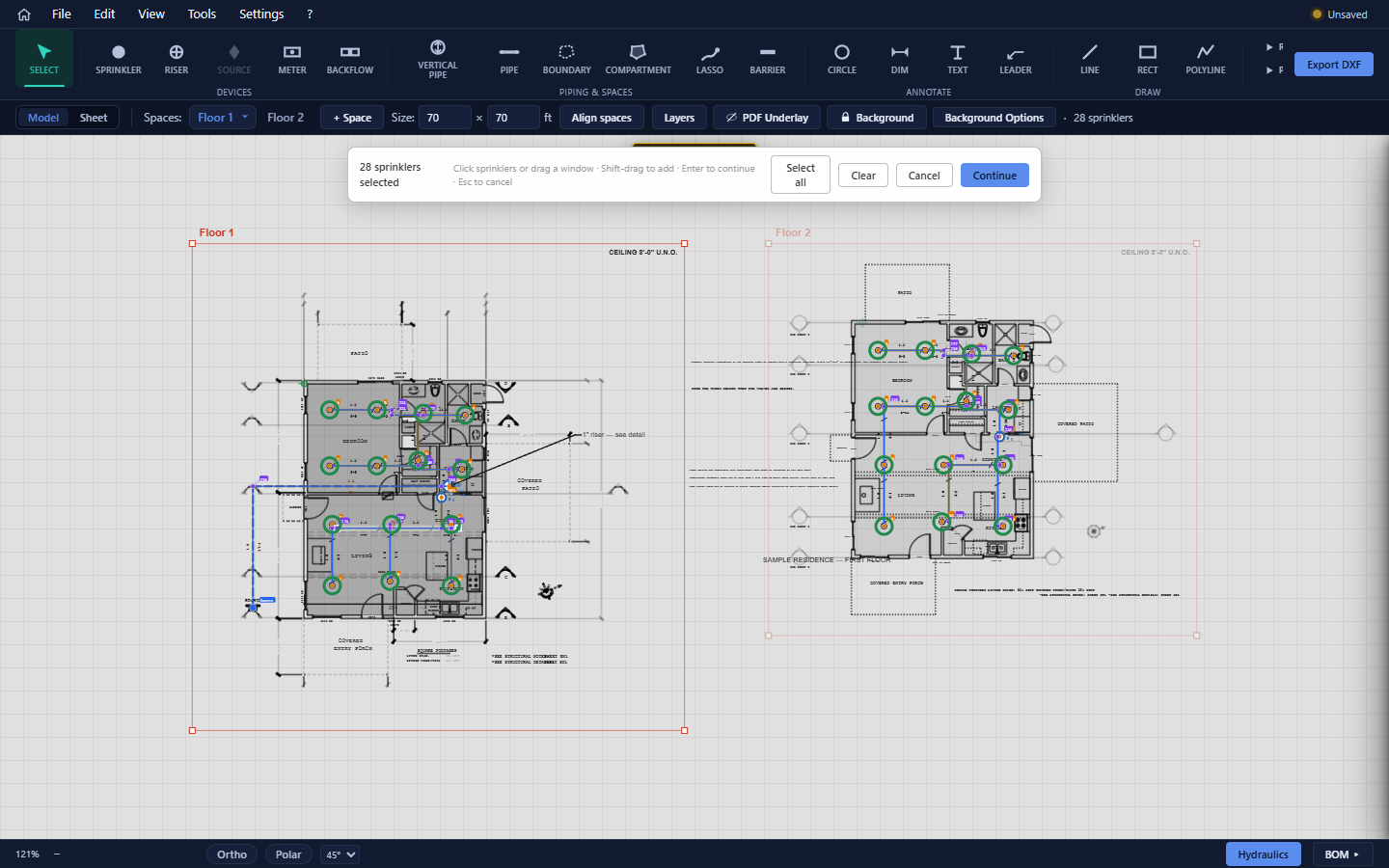
Click heads or drag a window; Shift-drag adds; Select all / Clear buttons help; Enter (or Continue) proceeds. Pick the design area's heads — typically the two most remote in a 13D design.
Step 2 — the flow table
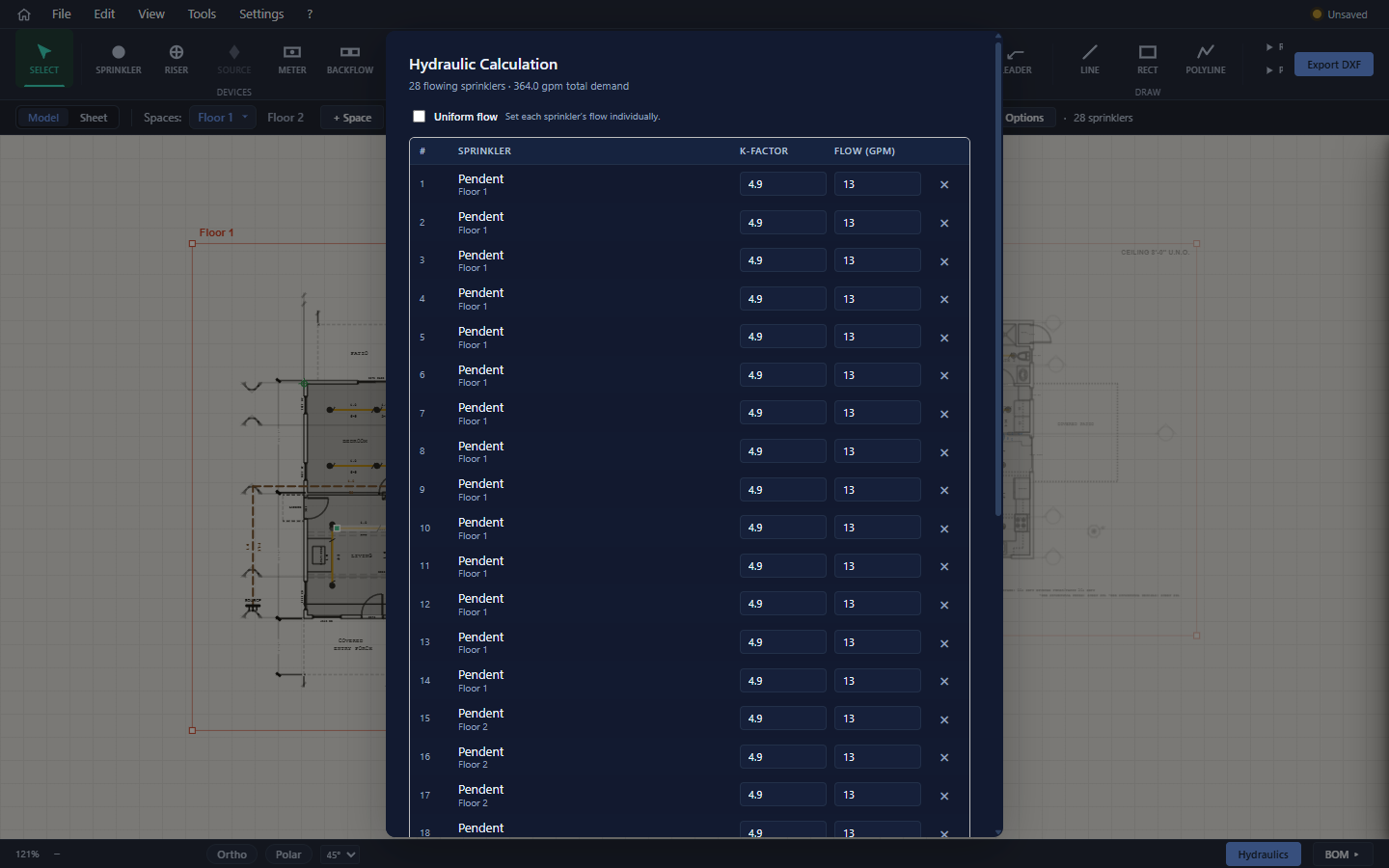
The modal lists each flowing head with its type and space, an editable K-factor, and an editable Flow (gpm); the header totals the demand. Uniform flow levels every row to the first row's value. Change selection goes back to step 1.
Step 3 — run it
Three buttons, three destinations:
| Button | What happens | Needs |
|---|---|---|
| Quick Calc ⚡ | Runs the real analysis on CaidentCalc's server; the PASS/FAIL summary comes straight back into the app. | Internet + signed in. CaidentCalc does not need to be running. |
| Send to CaidentCalc | Populates the CaidentCalc desktop app with this design; review and run it there. | CaidentCalc running on this machine. |
| Send to CaidentCalc (Auto) | Same populate, but Calc runs immediately and pushes the summary back into this app's results modal. | CaidentCalc running. |
If a Send fails with "Failed to send — is CaidentCalc running?", start CaidentCalc and try again.
Reading the results
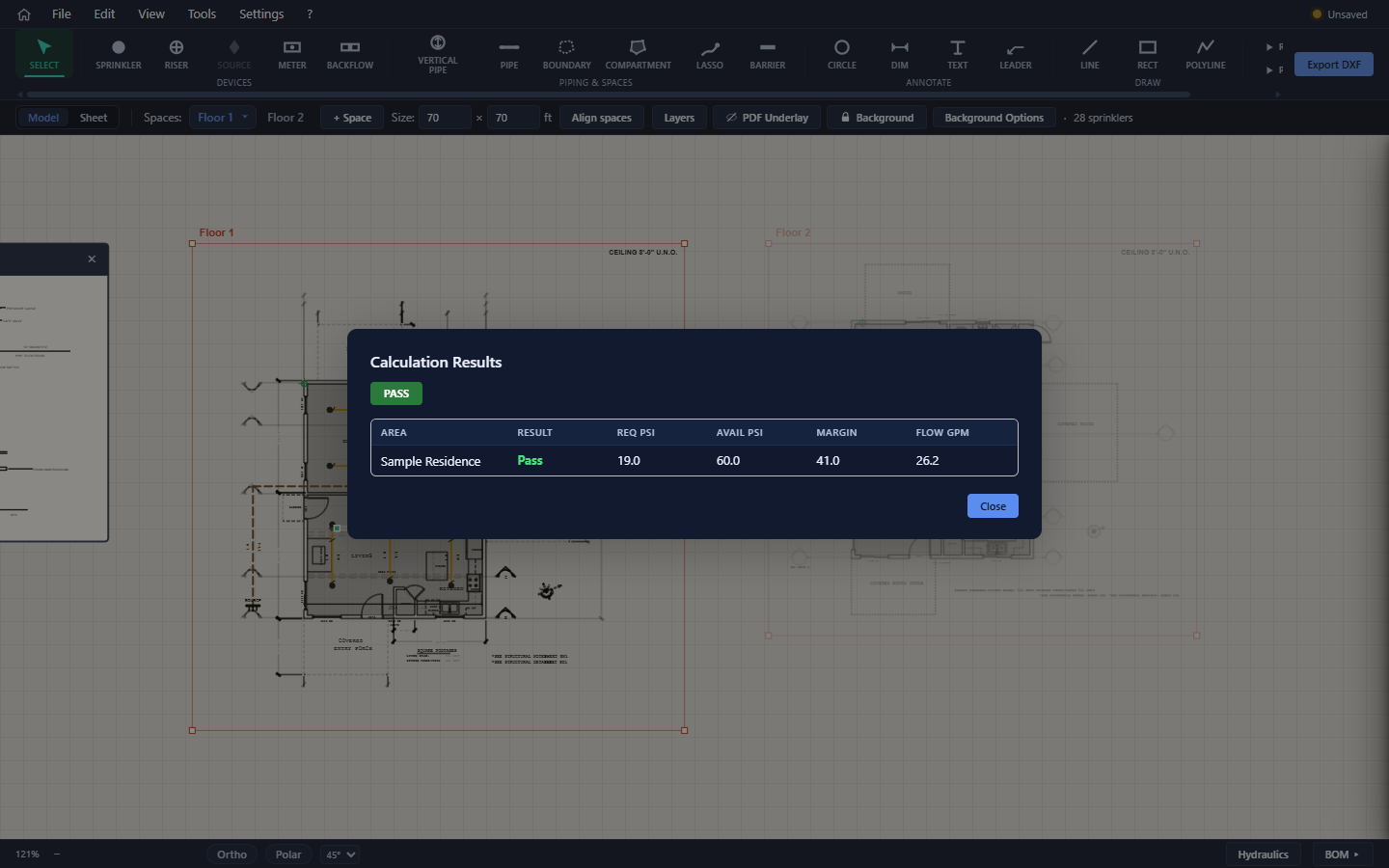
The verdict is per area: Required psi (the pressure the system needs at the source), Available psi (from your flow-test curve at the required flow), the Margin (negative = FAIL, shown red), and the total flow. All figures match CaidentCalc's precision — the two apps always agree, because it's one engine.
This modal is a summary. Stamped calculation reports — the cover-sheeted PDF with the full node/segment analysis and water-supply curve — are generated in CaidentCalc, not here. Use Send to CaidentCalc when you need the paperwork; the CaidentCalc User Manual's "Working with Caident Design" and "Exporting PDF Reports" chapters pick up exactly where this one leaves off.
Staying in sync
After you've sent a design to CaidentCalc, the first edit you make in Caident Design notifies Calc, and a dismissible banner — "Design is out of sync with Calculation" — reminds you the numbers over there no longer match the drawing over here. Re-send when the design settles.
Where to read more
What happens after a Send — reviewing the populated system, editing nodes and segments, reading the full results tables, and producing the submittal PDF — is CaidentCalc's side of the workflow, covered in the companion CaidentCalc User Manual.