The Home Screen
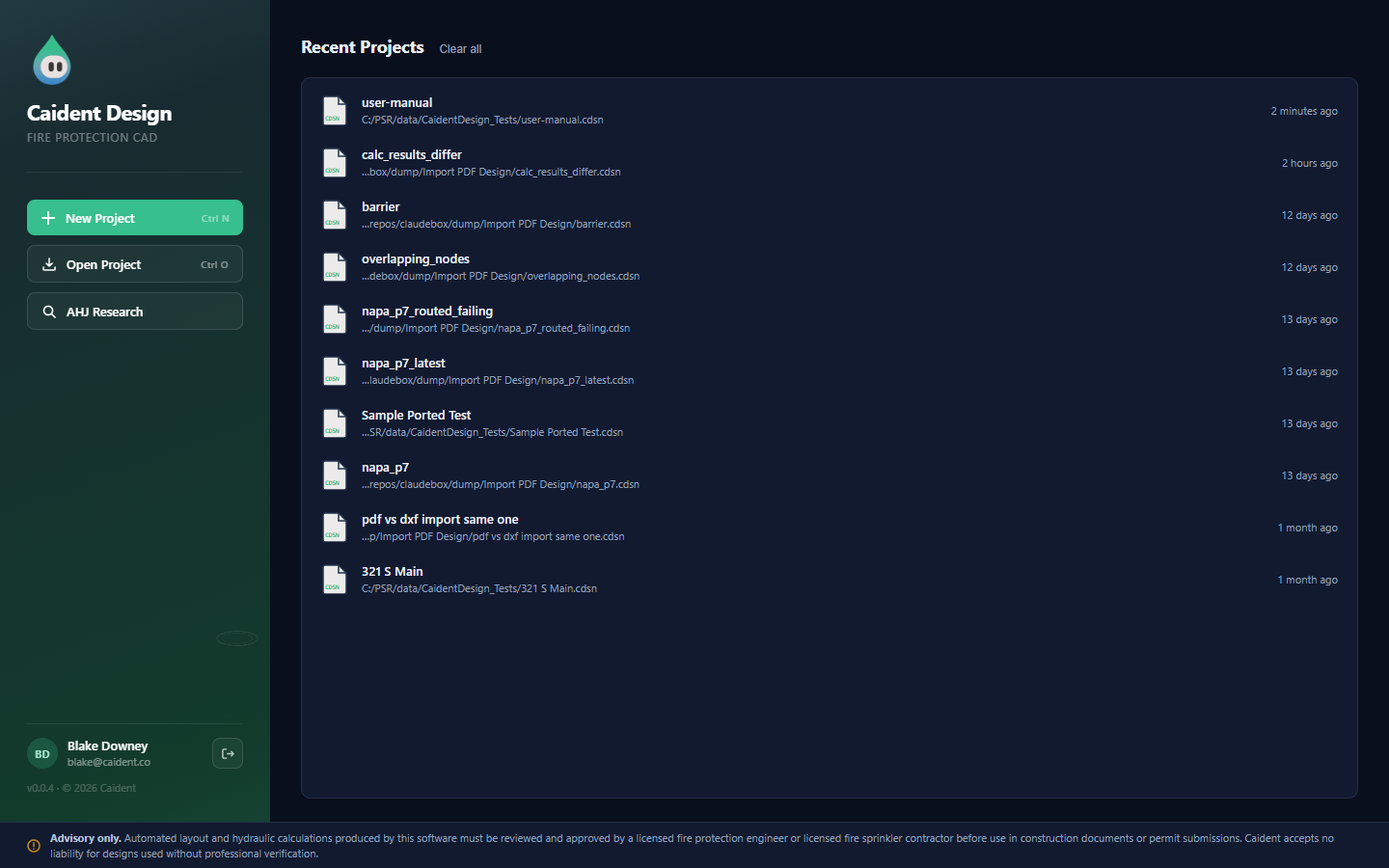
After signing in you land on the Home screen — the launchpad for projects.
Starting and opening projects
The left panel holds three actions:
| Action | Shortcut | What it does |
|---|---|---|
| New Project | Ctrl+N | Opens the editor with one empty 60 × 40 ft space and shows the Start a new design launcher (blank canvas, Import DXF, or Import PDF). |
| Open Project | Ctrl+O | Native file dialog for .cdsn project files. |
| AHJ Research | — | Opens the AHJ Research window (chapter 14) — no project needed. |
Below the actions sits your account card (name, email, and a sign-out button) and the app version.
Recent projects
The right panel lists your most recent projects — up to 10, newest first, each showing the file name, its folder, and when you last touched it ("3 hours ago", "2 days ago"). Click a row to open that project directly, no dialog.
- Clear all empties the list (it does not delete any files).
- If a file has moved or been deleted, opening it fails with a message naming the project; remove it from the list by clearing, or just open it from its new location.
The recent list also appears in the editor under File → Recent (the six most recent), so you can hop between projects without returning Home.
The advisory strip
The bar pinned to the bottom of the Home screen is worth reading once, verbatim:
Advisory only. Automated layout and hydraulic calculations produced by this software must be reviewed and approved by a licensed fire protection engineer or licensed fire sprinkler contractor before use in construction documents or permit submissions. Caident accepts no liability for designs used without professional verification.
If Home is replaced by an error screen
A Pipe Table Unavailable screen instead of Home means the app couldn't load its pipe catalogue from the server or a local cache — see "The pipe table" in chapter 2.