The Editor at a Glance
Everything in Caident Design happens in the editor. This chapter names its parts; later chapters go deep on each.
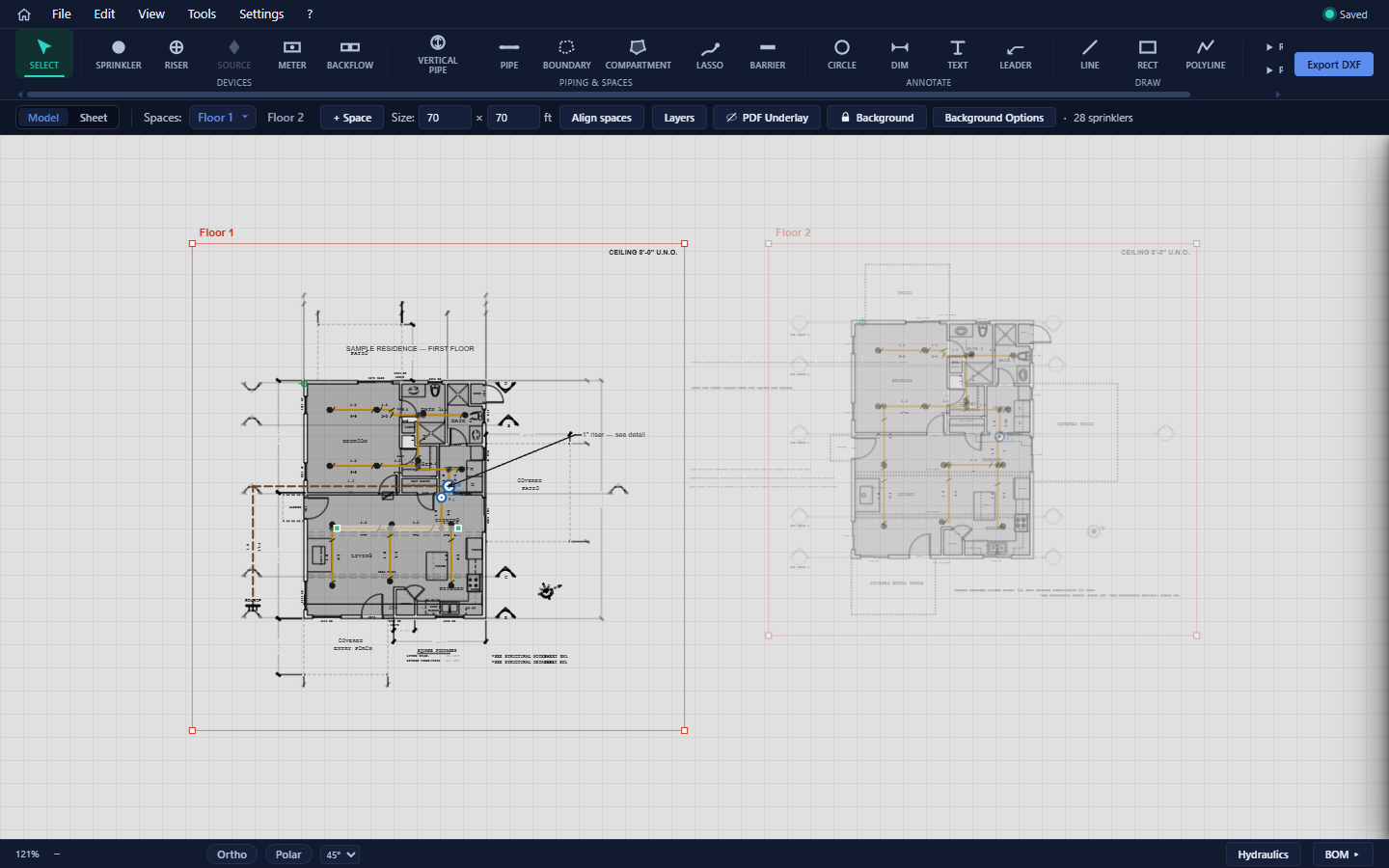
Top to bottom
| Region | What lives there |
|---|---|
| Menu bar | Home button, the File / Edit / View / Tools / Settings menus, the ? help card, and the save-state chip on the right. |
| Ribbon | The tool dock — every drawing tool, grouped Devices, Piping & spaces, Annotate, Draw — plus the Route Pipes / Place Sprinklers actions and the Export DXF button. Hidden while you're in Sheet view. |
| Context strip | The Model | Sheet view toggle, the Spaces: tabs with + Space, the space Size editor, Align spaces, the background controls (Layers, PDF Underlay, lock, Background Options), and a live sprinkler count. |
| Workspace | The drawing canvas — 100% vector, drawn in real-world feet — plus the panels that surround it: the Layers panel, the Inspector, and the Bill of Materials drawer. In Sheet view this whole area becomes the sheet editor. |
| Status strip | Zoom percentage, the precision bar (cursor X/Y, F8 Ortho, Polar and its angle increment), and the Hydraulics and BOM buttons. |

The save-state chip and window title
The chip at the right end of the menu bar always tells you where you stand:
| Chip | Meaning |
|---|---|
| New | Fresh project, nothing to save yet. |
| Unsaved | There are changes — press Ctrl+S. |
| Saved | All changes are on disk. |
The window title mirrors it: it shows the project's file name, with a pencil mark (✎) appended while there are unsaved changes.
The canvas model
- The canvas is drawn in world feet — 1 unit = 1 foot, always. Zoom only changes how big a foot looks (the status strip's percentage; 100% ≈ 6 pixels per foot).
- Wheel zooms about the cursor; middle-drag pans; left click places or selects. (The full mouse and keyboard reference is Appendix A.)
- Each space is one floor. The active space is full-strength; other spaces are faded and click-through until you double-click one to activate it.
- View → Show grid adds a fixed reference grid behind everything — it's visual only; there is no grid snapping. Precision comes from object snaps, Ortho/Polar, and typed lengths (chapter 6).
The panels

- Inspector (right) — appears whenever something is selected and shows exactly the properties that selection can edit: a sprinkler's type, K-factor and elevation; a pipe's material and diameter; a compartment's name and ceiling; and so on. Every Inspector panel ends with a Delete button.
- Layers panel (right; View → Layers panel or the Layers chip) — your drawing layers on top, the imported background's own DXF layers below, including the Wall / Door role dropdowns that drive room detection.
- BOM drawer (right; status strip BOM button) — the live bill of materials, with optional cost columns.
- Help card — the ? menu is a one-screen cheat sheet of mouse and keyboard commands, with the app version at the bottom.
Menus in one paragraph each
- File — New, Open, Save/Save As (Ctrl+S), the Recent list, Import background…, Export DXF… (Ctrl+E), and the destructive Clear all.
- Edit — Undo/Redo, Group/Ungroup, Auto-place sprinklers…, Run auto-route on all, the Auto-route on edit toggle, Optimize selected line, Align spaces…, and Hydraulic calculation….
- View — zoom commands, Show grid, the Layers panel, Show annotations, Show nodes, the BOM, Pipe defaults…, Material costs…, the Snapping master toggle with its per-type sub-toggles, and Remove background.
- Tools — AHJ research….
- Settings — Settings… (the settings page), Hide tool placement tips, and Sign Out.
Leaving the editor safely
The Home button, File → New/Open/Recent, and closing the window are all guarded: if the project has unsaved changes you get a Save changes? prompt with Save & Continue, Discard, and Cancel (the close-window variant says Save & Close / Close without saving). You can't lose work to a stray click.