Getting Started
Installing
Caident Design ships as a signed Windows installer. Run it and launch Caident Design from the Start menu. The installer also registers the .cdsn project file type, so double-clicking a Caident Design project opens it in the app.
The default window opens at 1440 × 900 and can be resized down to 900 × 620.
Signing in
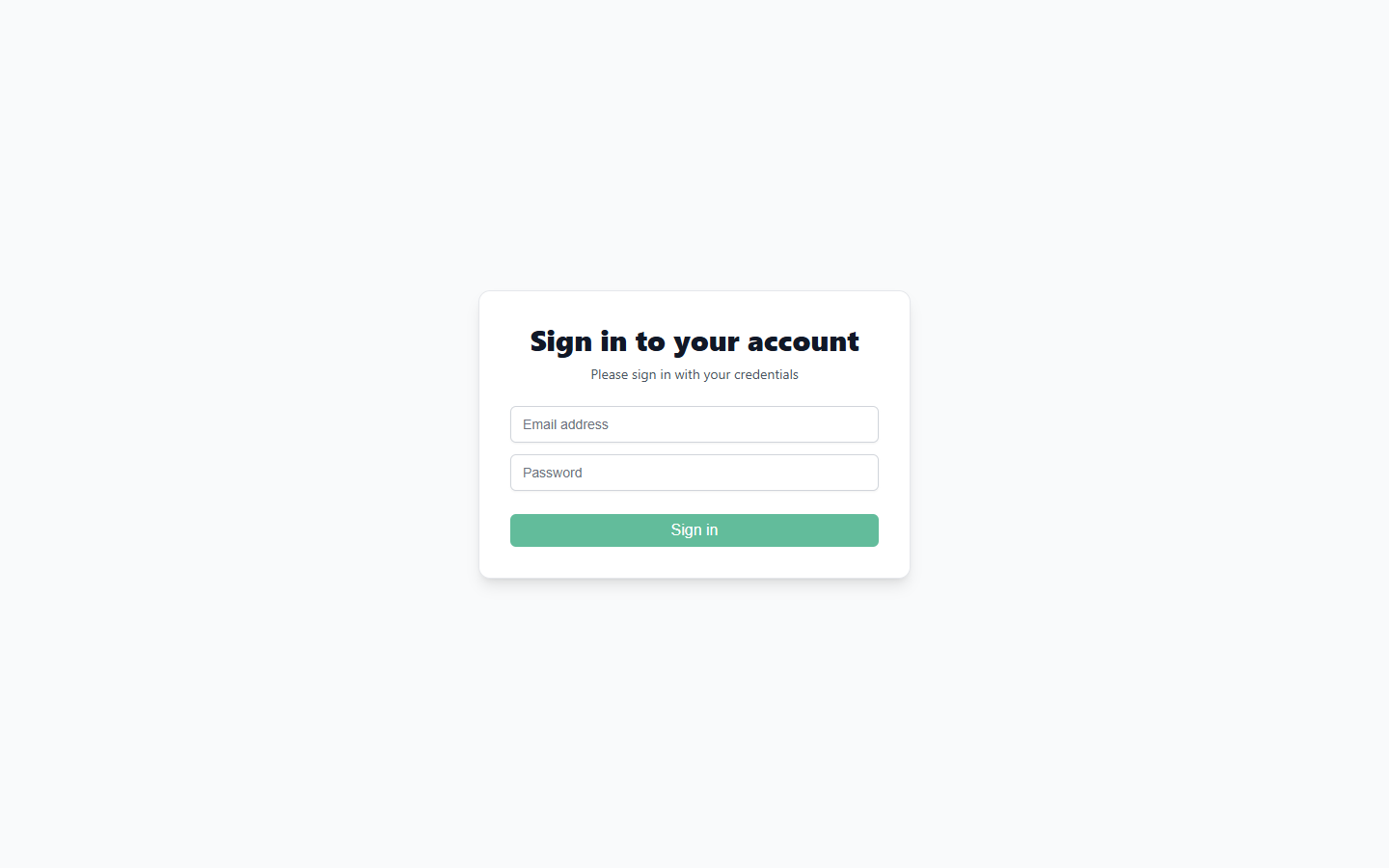
The app starts at the sign-in screen. Enter the email address and password of your Caident account and click Sign in.
- Accounts are created and managed on the Caident web app — the desktop app itself never creates accounts.
- If your email address hasn't been verified yet, the app tells you and offers an Open Caident web app button; verify there, then return and sign in.
- You stay signed in between launches. The session is stored securely (the refresh token lives in Windows Credential Manager), so day to day you'll land straight on the Home screen.
- To sign out, use Settings → Sign Out in the editor's menu bar, or the sign-out button on the Home screen's account card.
Organizations and access
Your account belongs to one or more organizations, and access to Caident Design is licensed per organization. If you sign in but your current organization doesn't include Caident Design access, an Access required screen appears:
- If you belong to more than one organization, pick another one from the Organization dropdown and click Switch organization.
- If your organization has no subscription, contact your administrator (the screen offers Sign out).
Device seats
Each installation claims a device seat for your organization when you sign in. If the organization's device limit is reached, the access screen says so and offers Manage devices, which opens your account's device list on the Caident web app — free a seat there, then try again.
The seat check needs a network connection at sign-in. If the server is briefly unreachable but this machine already holds a seat, the app lets you keep working.
The pipe table
At startup the app downloads its pipe table (Caident Fittings.cpipe) — the catalogue of pipe materials, diameters, and fitting losses that powers the material dropdowns, BOM, and hydraulics. It is cached locally after the first fetch, and an existing CaidentCalc installation can serve as an offline fallback.
If the pipe table can't be loaded at all — no server, no local copy — the app stops at a Pipe Table Unavailable screen. Check your internet connection and restart the application.
Automatic updates
Caident Design keeps itself up to date. On every launch it checks for a newer version and, if one exists, downloads, installs, and restarts silently — there is no prompt or progress dialog.
If the app seems to close and reopen by itself shortly after launch, that's an update being applied. Your work is safe: updates run at startup, before a project is open.
A 10-minute tour of the workflow
Once you're signed in, a typical project runs:
- Home → New Project, then pick Import PDF (or Import DXF) in the launcher.
- Snip the floor plan out of the drawing; the app detects walls, doors, the scale, and the rooms. One space per floor.
- Check the detected compartments; fix wall/door layer roles in the Layers panel if rooms look merged or split.
- Place a riser and the water source; enter the flow test on the source.
- Place Sprinklers (auto) or place heads by hand from the tool dock.
- Draw your main run with the Pipe tool; Route Pipes branches to every head.
- Hydraulics → pick the flowing heads → Quick Calc → PASS.
- Save (Ctrl+S), then export sheets, the BOM, or DXF.
The rest of this manual walks each of those steps in depth.