Spaces, Backgrounds & Room Detection
A space is one floor of the building. Most projects start by importing the architect's drawing as that floor's background, letting the app detect the walls and rooms, and designing on top.
Spaces
- The Spaces: tabs in the context strip switch floors. + Space adds one (named "Floor N" by default); double-click a tab to rename; the active tab's caret menu has Rename… and Delete space….
- Size edits the active space's region, 10–500 ft per side. Contents move with it.
- Double-clicking inside another space's region on the canvas activates it.
- Devices and pipes can only be placed inside a space's region; annotations can go anywhere.
Importing a background
Start from either entry point:
- File → Import background…, or
- the Start a new design launcher that appears after New Project — its Import DXF and Import PDF cards go to the same place.
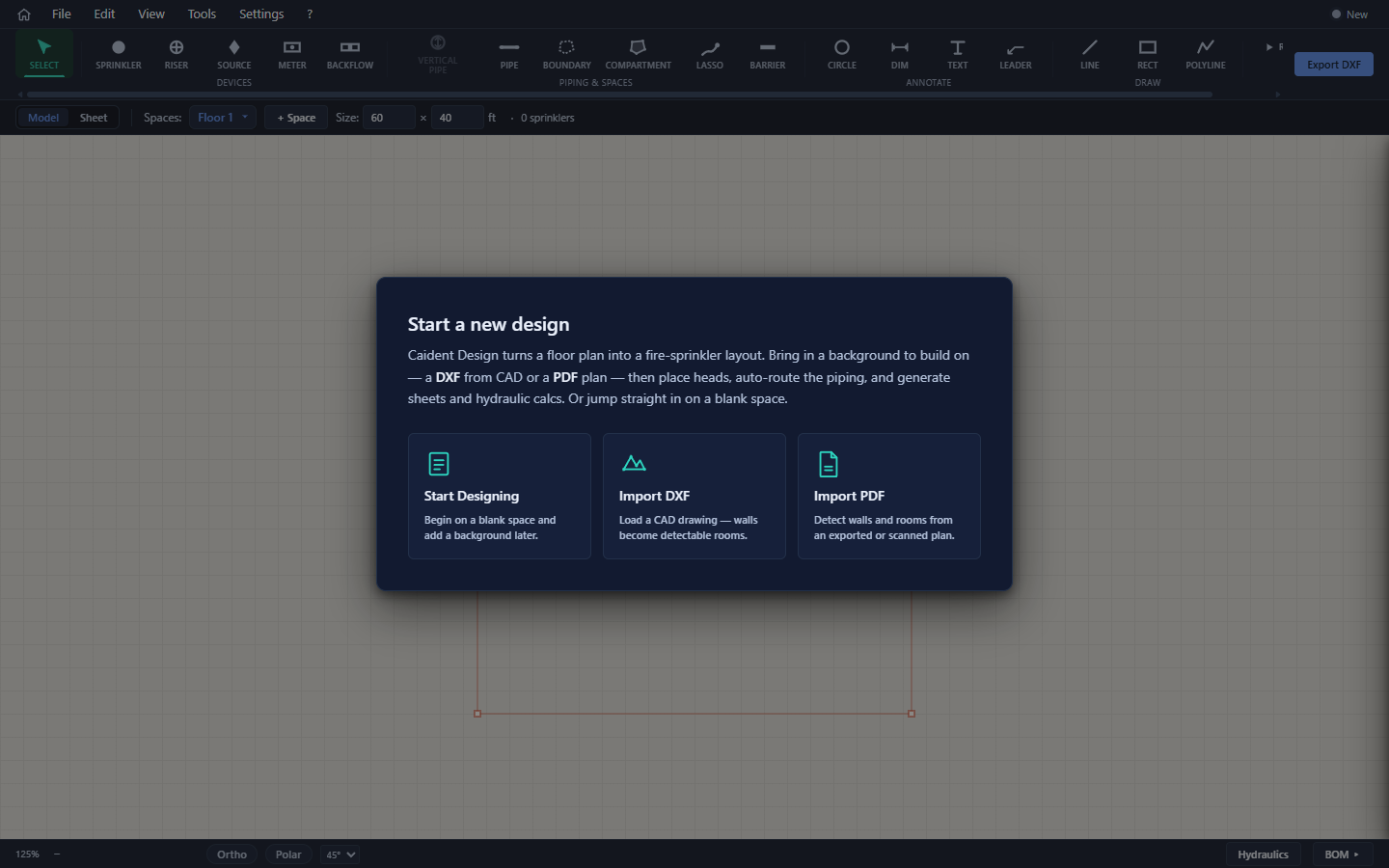
Supported files are .dxf and .pdf (anything else is rejected with "Unsupported file type").
The import preview — snip what you need
Architectural sheets usually carry more than the floor plan — title blocks, schedules, several plans per sheet. The import preview lets you snip just the part you want:
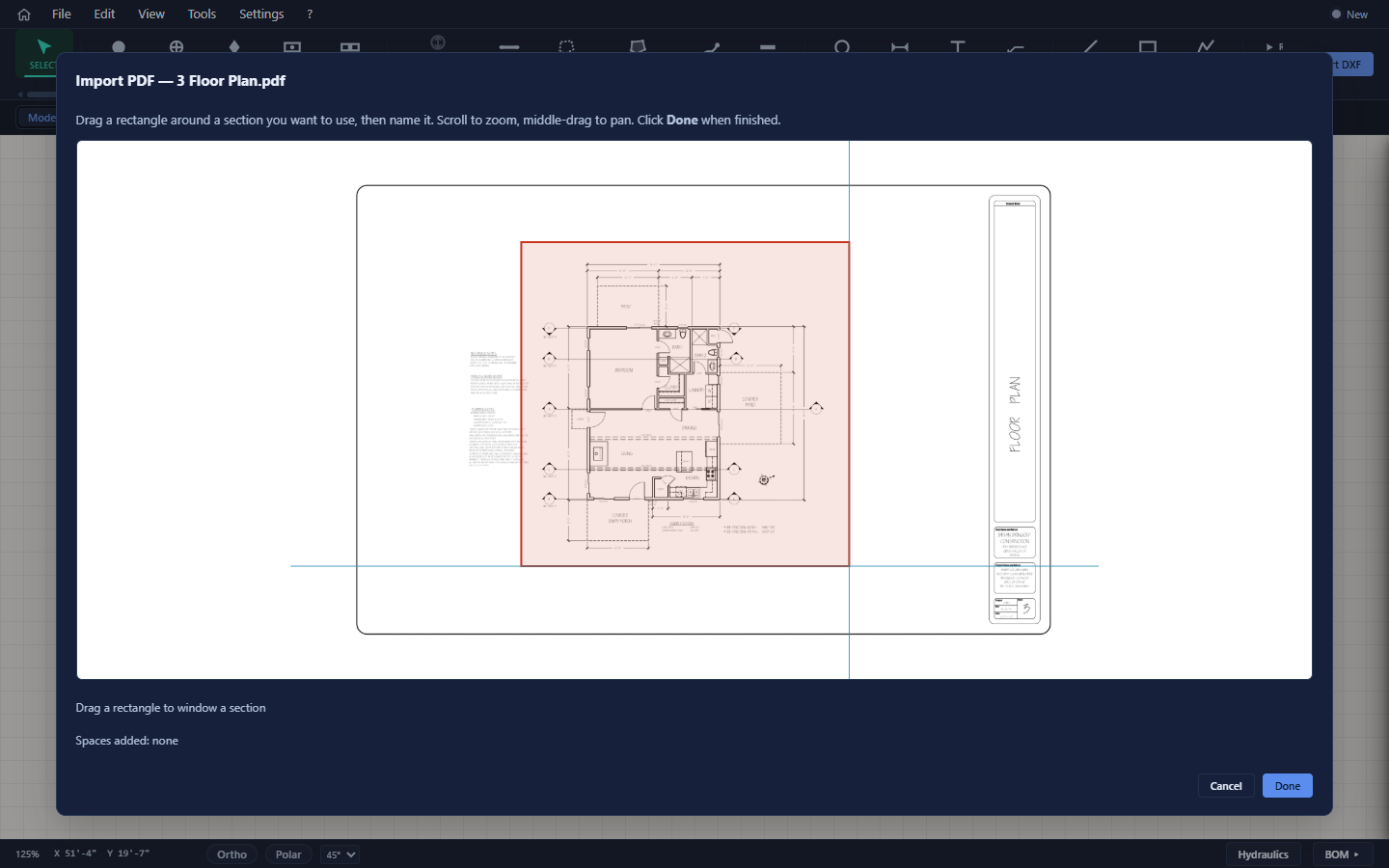
- Pick the page (PDF pages, or DXF "tabs") along the top.
- Scroll to zoom, middle-drag to pan.
- Drag a rectangle around one floor plan.
- Name the space it will create (pre-filled "Floor N") and click Add space.
- Repeat for more floors — each snip becomes its own space — then click Done. Cancel undoes every space added this import session.
PDF specifics
While a PDF loads, an Importing PDF pages… progress overlay runs; after each snip an Analyzing snip… step extracts the walls. The naming dialog then reports what it found:
Detected 214 wall lines, 11 doors · scale ¼″ = 1′-0″ (high confidence)
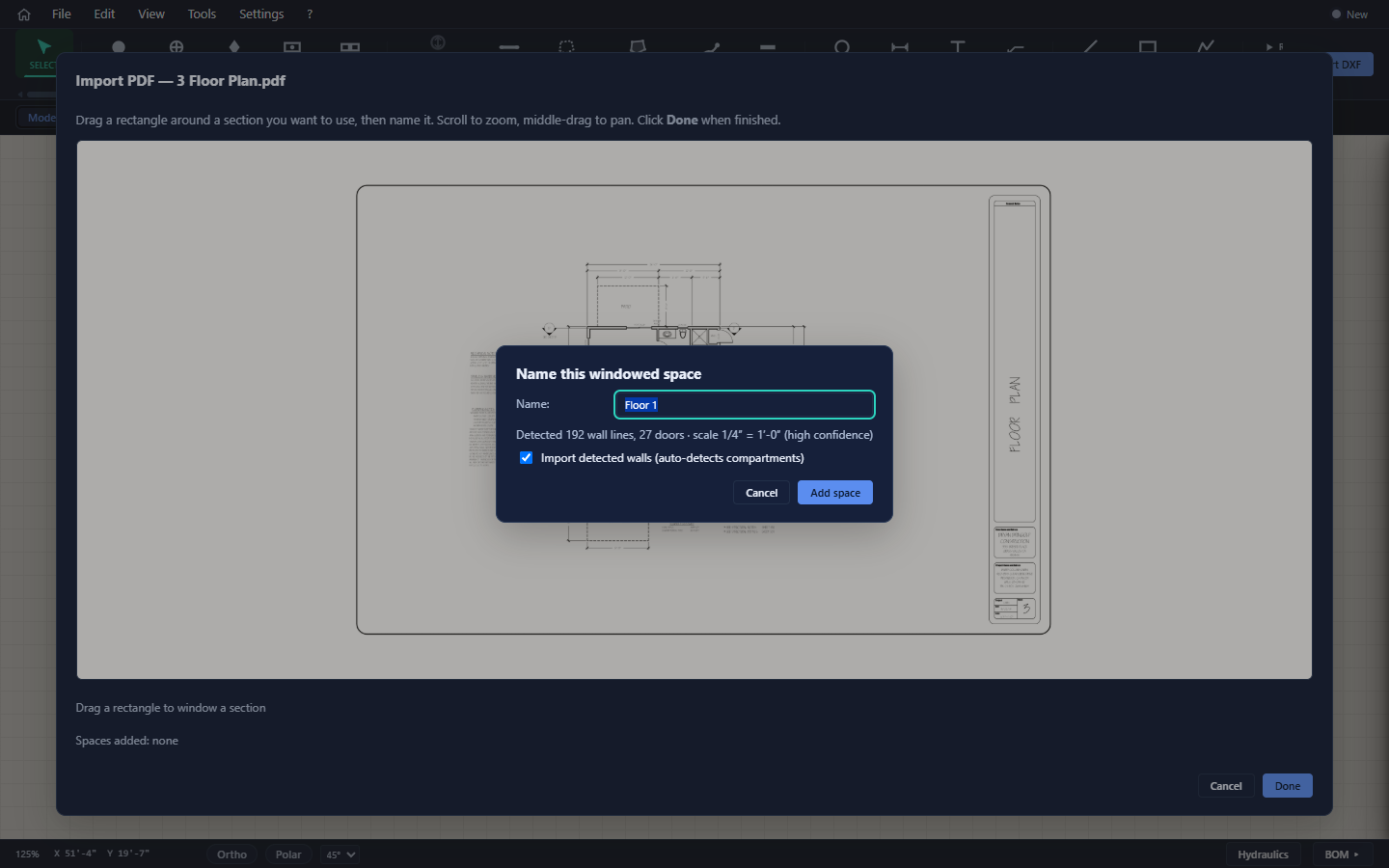
- Leave Import detected walls checked to bring the walls in as real geometry — that's what makes automatic room detection possible.
- Vector PDFs (exported from CAD) give the best results. Scanned PDFs go through OCR and image analysis; when nothing usable is found the plan imports as a picture only, and you'll place rooms by hand (chapter 6's Compartment and Lasso tools).
- If the sheet's text is plotted as line work, the scale may be a guess from wall thickness — the dialog warns you. Calibrate afterwards (below) before trusting detection.
DXF specifics
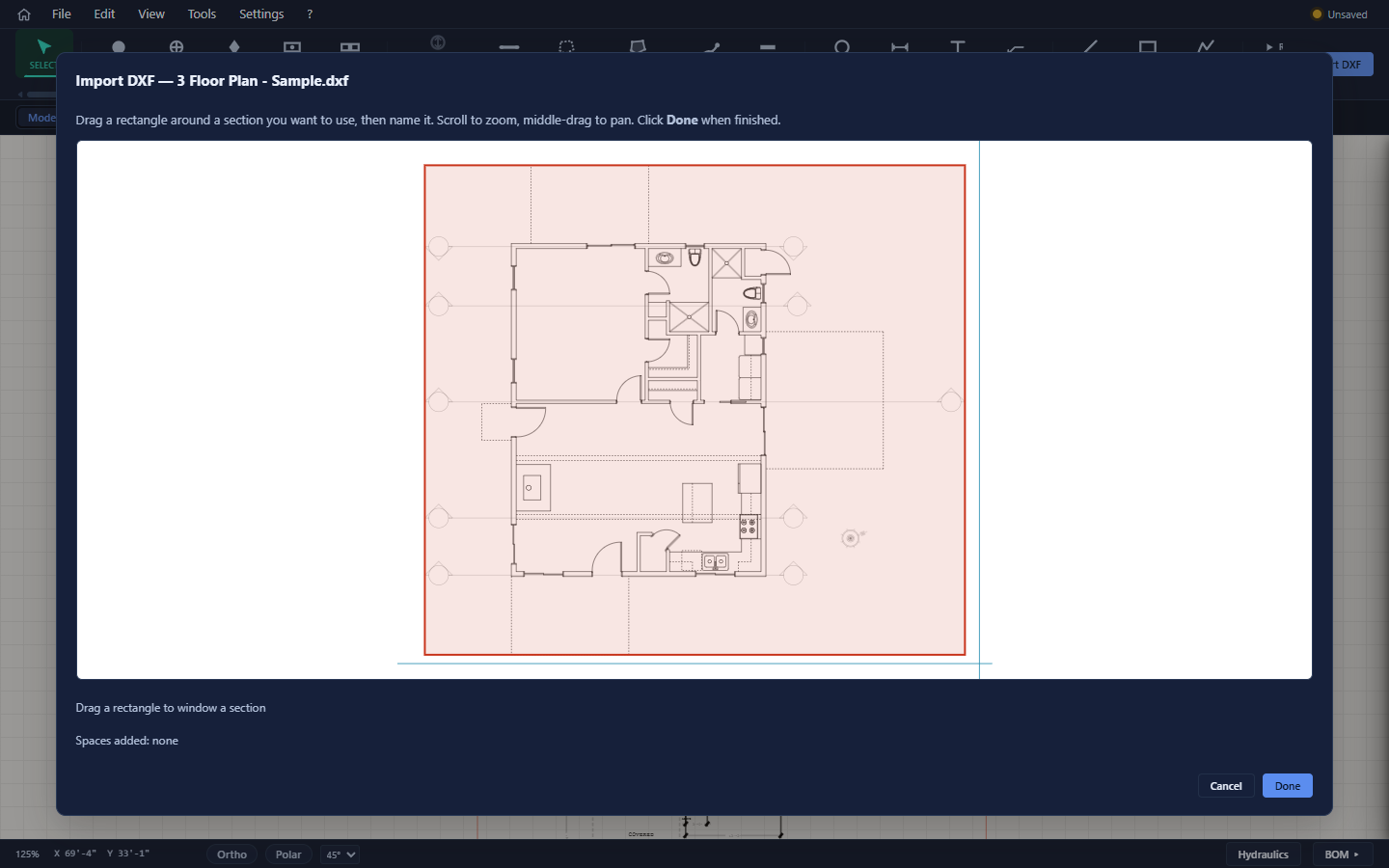
DXF import is instant — no analysis pass. Two things differ from PDF:
- The preview rearranges the sheet's separate drawings side by side so they're all visible (dashed dividers; true sizes are kept). Each snip must stay within one drawing.
- Units come from the file's
$INSUNITSheader. A unitless DXF imports at 1 unit = 1 ft, and room detection waits until you calibrate the scale.
Calibrating the scale
If the detected scale is wrong — or a DXF had no units — fix it in seconds:
- Background Options → Set background scale…
- Click two points on the background that are a known distance apart (a door opening, a dimensioned wall).
- Enter the real distance — US (ft + in) or Metric (m + cm) — and Apply.
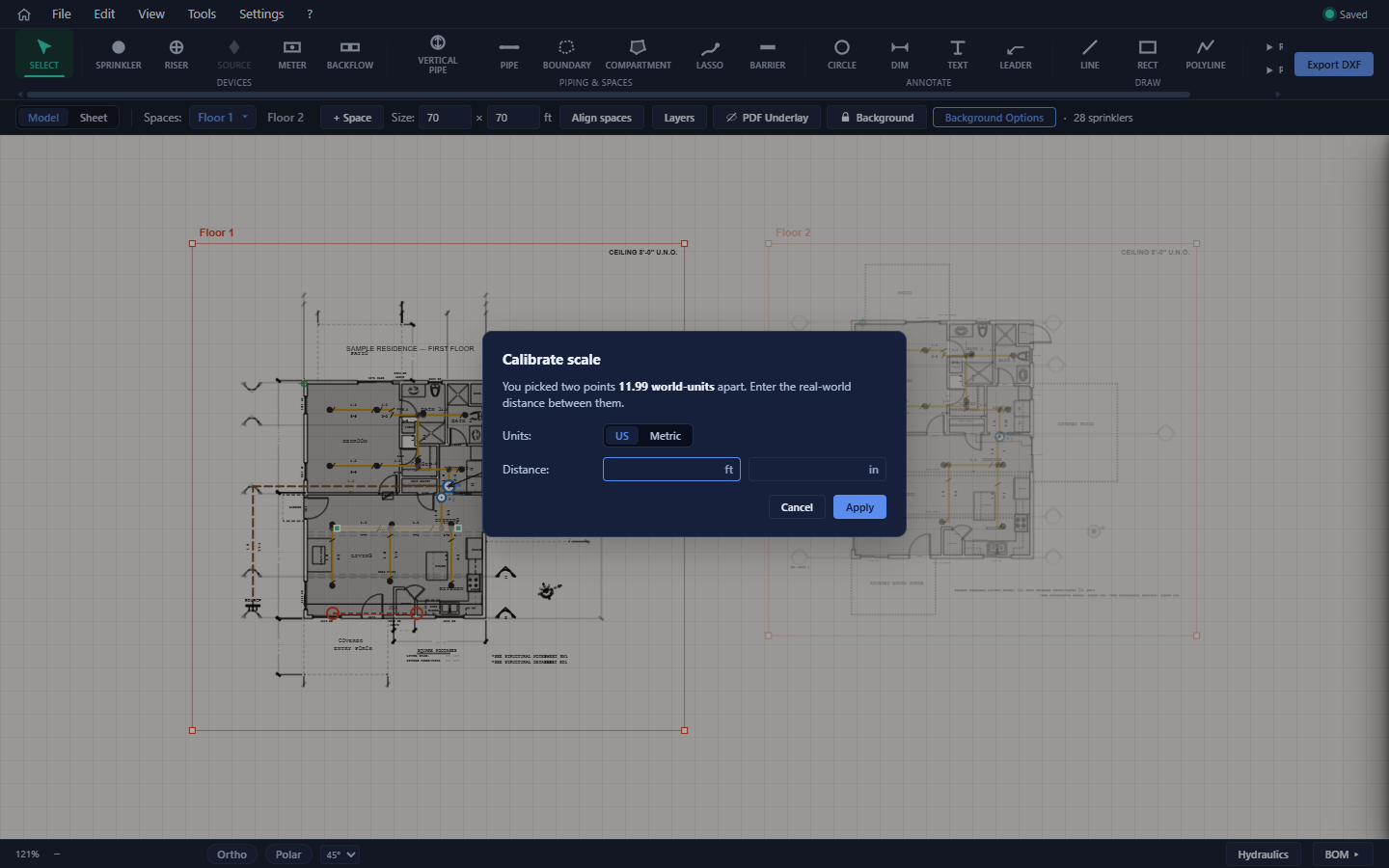
The background rescales around your picked points, and room detection re-runs if it was waiting on the scale.
Room detection (compartments)
With walls imported and the scale known, Caident Design detects the compartments — the rooms — automatically. Detection runs after import, after you adjust wall/door layer roles, and after re-locking an edited background.
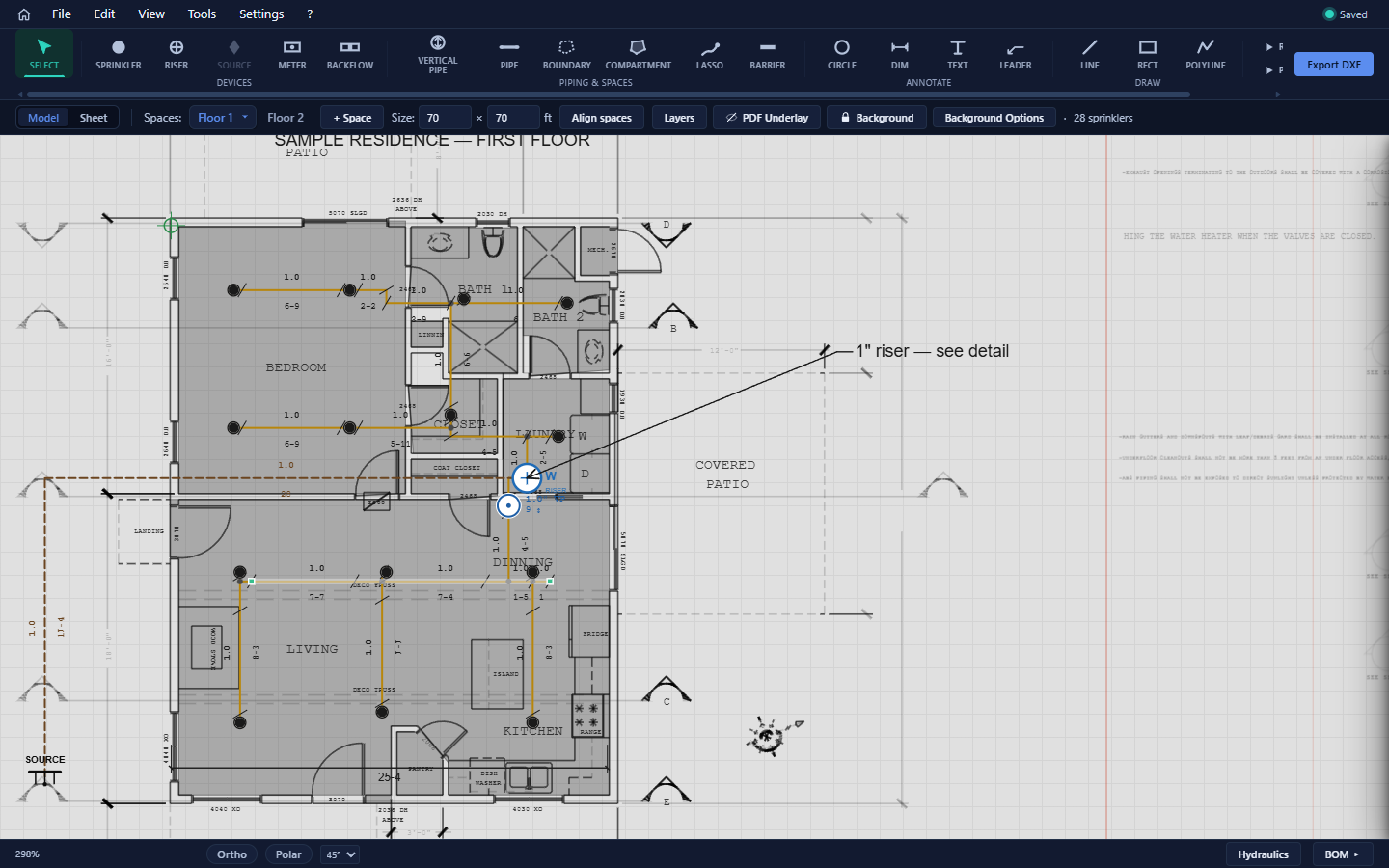
What it does for you:
- Finds each enclosed room from the wall and door geometry (door swings are recognized and their openings sealed, so rooms don't leak into each other).
- Names rooms from text on the drawing when possible ("KITCHEN", "BED 2"), otherwise "Compartment N".
- Snaps every room edge exactly onto the wall lines.
- Ignores dashed lines, dimensions, and plumbing-fixture symbols so they don't split rooms.
Compartments matter: auto-placement puts sprinklers in rooms, and ceiling heights (and therefore sprinkler elevations) are set per room.
When rooms look wrong
Detection is driven by which background layers count as walls and doors. If rooms look merged, over-split, or missing:
- Open the Layers panel (the Layers chip, or View → Layers panel).
- In the Background section, find the layer roles — a dropdown per layer: — / Wall / Door.
- Correct the roles; detection re-runs immediately.
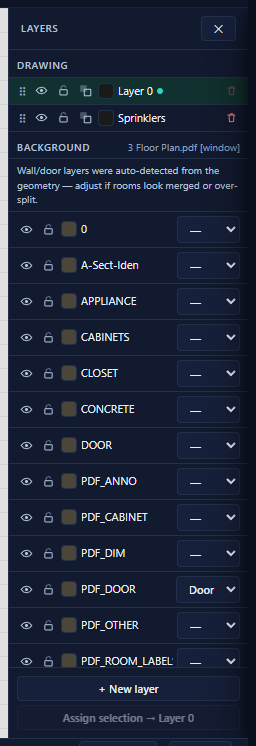
Rooms you've edited by hand are never regenerated — the Inspector shows each compartment's Source ("Auto-detected" vs "Manually edited") and offers Reset to auto-detected when you want detection to take a room back over.
Working with the background
Once a space has a background, chips appear in the context strip:

| Control | What it does |
|---|---|
| Layers | Opens the Layers panel. |
| PDF Underlay (eye) | Shows/hides the original PDF image beneath the detected line work — useful because the PDF's baked-in text otherwise doubles up with detected labels. |
| Background (padlock) | Locks/unlocks the background. Locked (default): the drawing is visible and snappable but can't be selected. Unlocked: its lines become selectable, movable, deletable — edit the architect's linework directly. |
| Background Options (…) | Background Darkness slider (10–100%), Set background scale…, Remove background…. |
Unlock the background to delete furniture, fixtures, or stray geometry that clutters the plan — then lock it again (detection re-runs on re-lock). Selected background entities can also be lifted into your own drawing layers to make them editable project linework; see chapter 9.
Aligning stacked spaces
Multi-floor projects need the app to know how floors stack. Align spaces (context strip, or Edit → Align spaces…) walks you through it:
- Choose the Lower space and Upper space in the dialog.
- Click the same reference point in each space when prompted (a stair corner, a riser location) — the banner counts "1 of 2", "2 of 2".
Alignment is what makes vertical pipes possible (chapter 8), and it's how sprinkler elevations on an upper floor are computed — the lower floor's ceiling plus the vertical pipe between them.