Settings
Settings → Settings… in the editor's menu bar opens the settings page (the ← Back button returns to the editor).
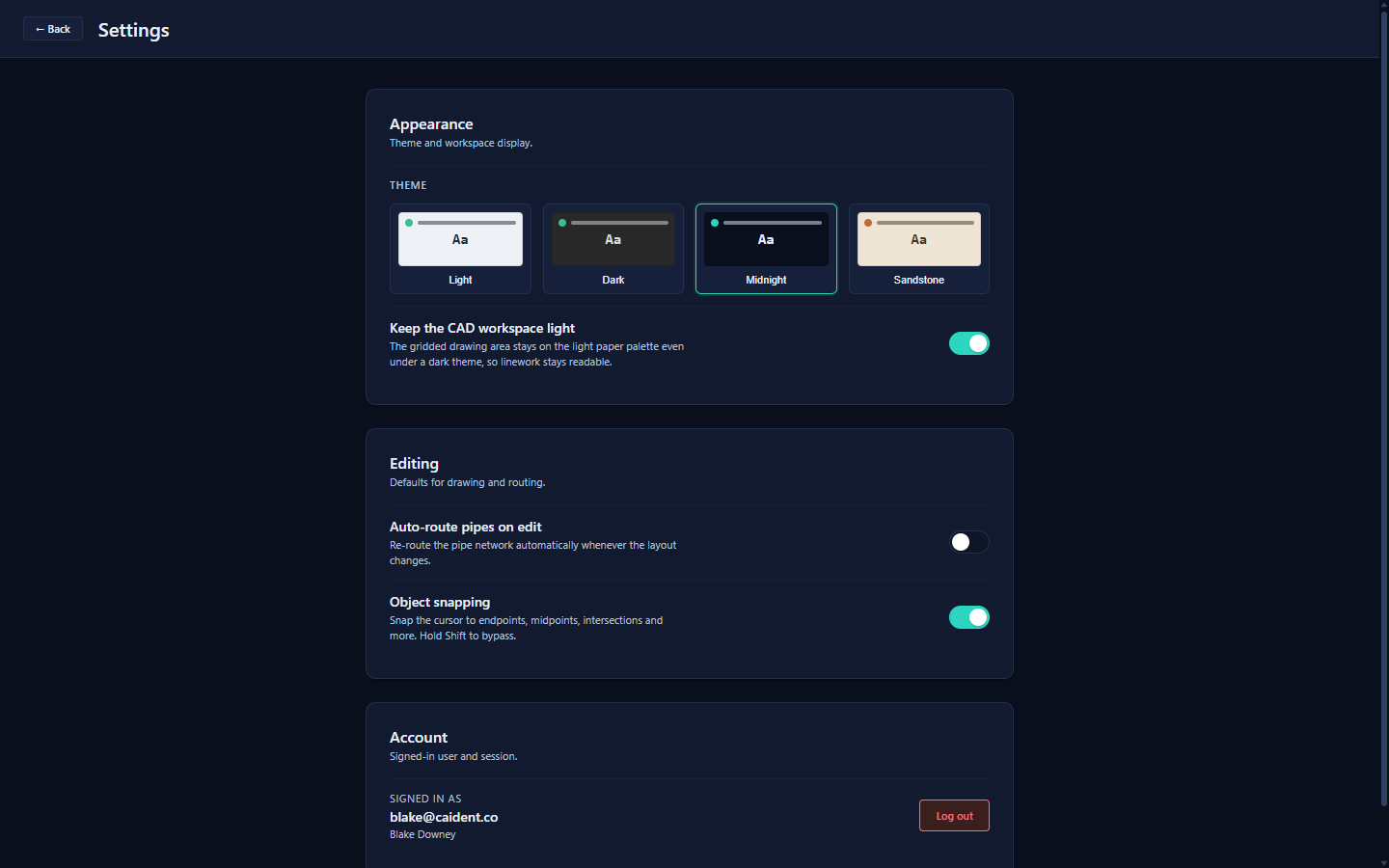
Appearance
- Theme — Light, Dark, Midnight, or Sandstone.
- Keep the CAD workspace light (default on) — under a dark theme, the drawing area stays on the light paper palette so linework stays readable. Turn it off for a fully dark canvas.
Editing
Two switches that mirror their menu counterparts:
- Auto-route pipes on edit — re-route the network automatically whenever the layout changes (same as Edit → Auto-route on edit).
- Object snapping — the master snap toggle (same as View → Snapping; hold Shift to bypass per pick).
Account
Shows who is signed in, with a Sign out button.
Where the other preferences live
A few user preferences are set elsewhere but persist the same way (per machine):
| Preference | Where |
|---|---|
| Ortho / Polar / polar increment | Status-strip chips |
| Individual snap types | View → Snapping submenu |
| Hide tool placement tips | Settings menu |
| Auto-place coverage & NFPA rules | The Auto-place dialog remembers its last values |
| Material price book | View → Material costs… |
| Sprinkler K-factors & part numbers | Per sprinkler type, in the Inspector |
One view preference — View → Show nodes (calc-node labels on the routed network) — is saved into the project file rather than per machine, since it describes the drawing.