Layers & Groups
The Layers panel
Open it with the Layers chip in the context strip or View → Layers panel. It has two sections.
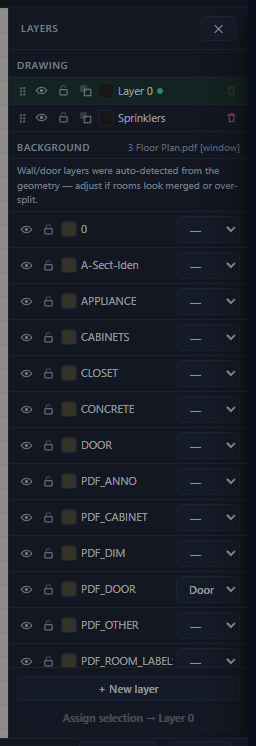
Drawing layers (yours)
Project-wide layers for everything you author. Each row, left to right:
| Control | Meaning |
|---|---|
| Drag grip | Reorder layers (draw order). |
| Eye | Show / hide the layer. |
| Padlock | Lock / unlock (locked = visible but not selectable). |
| Send-behind | Draw this layer behind the model — for notes and dimensions you want out of the way. |
| Color swatch | The layer color (picker on click). |
| Name | Double-click to rename. |
| Trash | Delete — the layer's objects move to Layer 0. The default layer can't be deleted. |
Click a row to make it the active layer — new objects land there (the dot marks it). The footer has + New layer and Assign selection → (active layer) for re-homing whatever is selected.
New sprinklers are auto-sorted onto the "Sprinklers" layer regardless of the active layer, so heads stay manageable as a set.
Background layers (the imported drawing's)
Below your layers sit the background's own DXF layers — shared across every DXF-backed space:
- Eye and padlock per layer (a locked background layer stays visible and snappable but can't be picked).
- Color swatch with a reset arrow (restore the drawing's original color).
- The role dropdown — / Wall / Door — this is what room detection reads. If rooms are merged or over-split, fix the roles here (chapter 5).
- The Annotations row controls how the drawing's own dimensions/leaders render: Dimmed / Hidden / Full strength (they're always excluded from detection).
Clicking a background-layer row makes it active, so the Draw tools add linework directly into the imported drawing on that layer.
Groups
Groups bundle objects so they select and move as one — a riser assembly, a repeated bathroom layout, a detail you copy between floors.
- Create: select 2+ objects → Ctrl+G (or the selection bar's Group). Dissolve: Ctrl+Shift+G / Ungroup.
- Clicking any member selects the whole group. Ctrl+click reaches a single member inside it (to nudge one head without breaking the bundle).
- A group can span entity kinds, layers, even spaces. It moves, duplicates, arrays, mirrors, nudges, and deletes as one unit.
- Duplicating a group yields a new, independent group per copy.
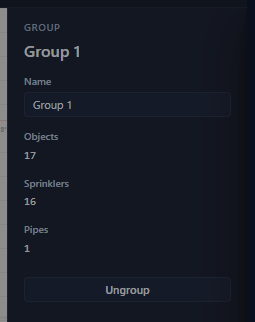
- The Inspector's Group panel shows the name (editable), the member count by kind, and Ungroup.
A group needs at least two members — delete it down to one and it quietly dissolves. Groups are saved in the project file.