Piping & Auto-Routing
Caident Design pipes a floor in two layers of intent: you draw the runs that matter (manual pipes), and auto-routing grows the rest of the tree from them — rectilinear branches to every head, dodging walls, staying inside the boundary.
Devices that anchor the network
| Device | Tool | Notes |
|---|---|---|
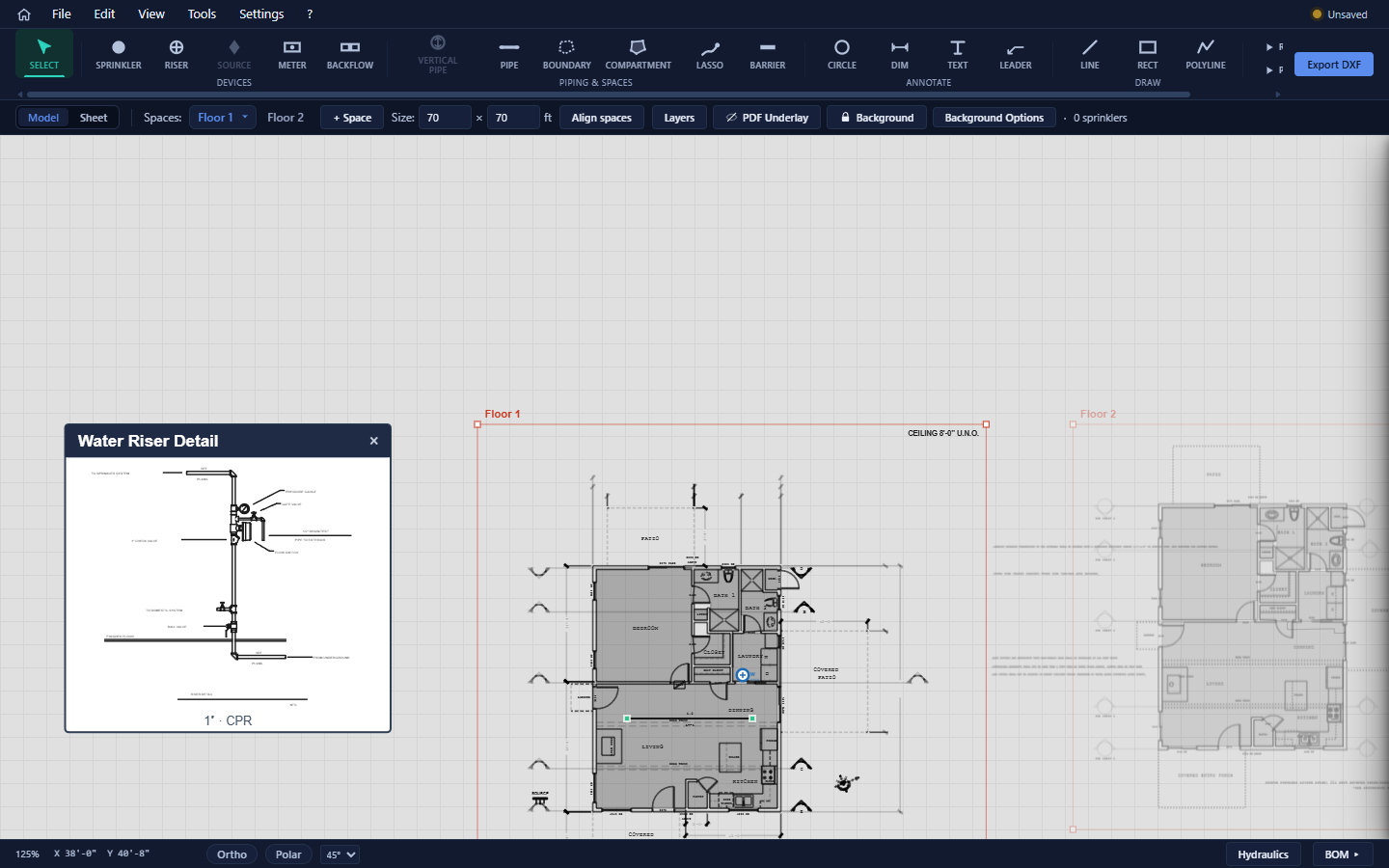
| Riser | Devices → Riser | Types Water / Antifreeze; per-type diameter (1–3″) and material (Copper / CPVC / Steel). Placing one pops a draggable riser detail card on the canvas. |
| Water source | Devices → Source | One per plan (the tool disables itself once placed). Holds the flow-test data — see chapter 11. |
| Water meter / Backflow | Devices → Meter / Backflow | Underground equipment; sized in the Inspector; right-click → Rotate 90°. |
The internal network (per space) connects sprinklers through branch lines; the underground network (one plane for the whole project) connects the source, meters/backflows, and risers.
Manual pipes — how you steer the router
Arm Pipe and click twice; the run locks to horizontal or vertical. Manual pipes are the highest-leverage tool in the app:
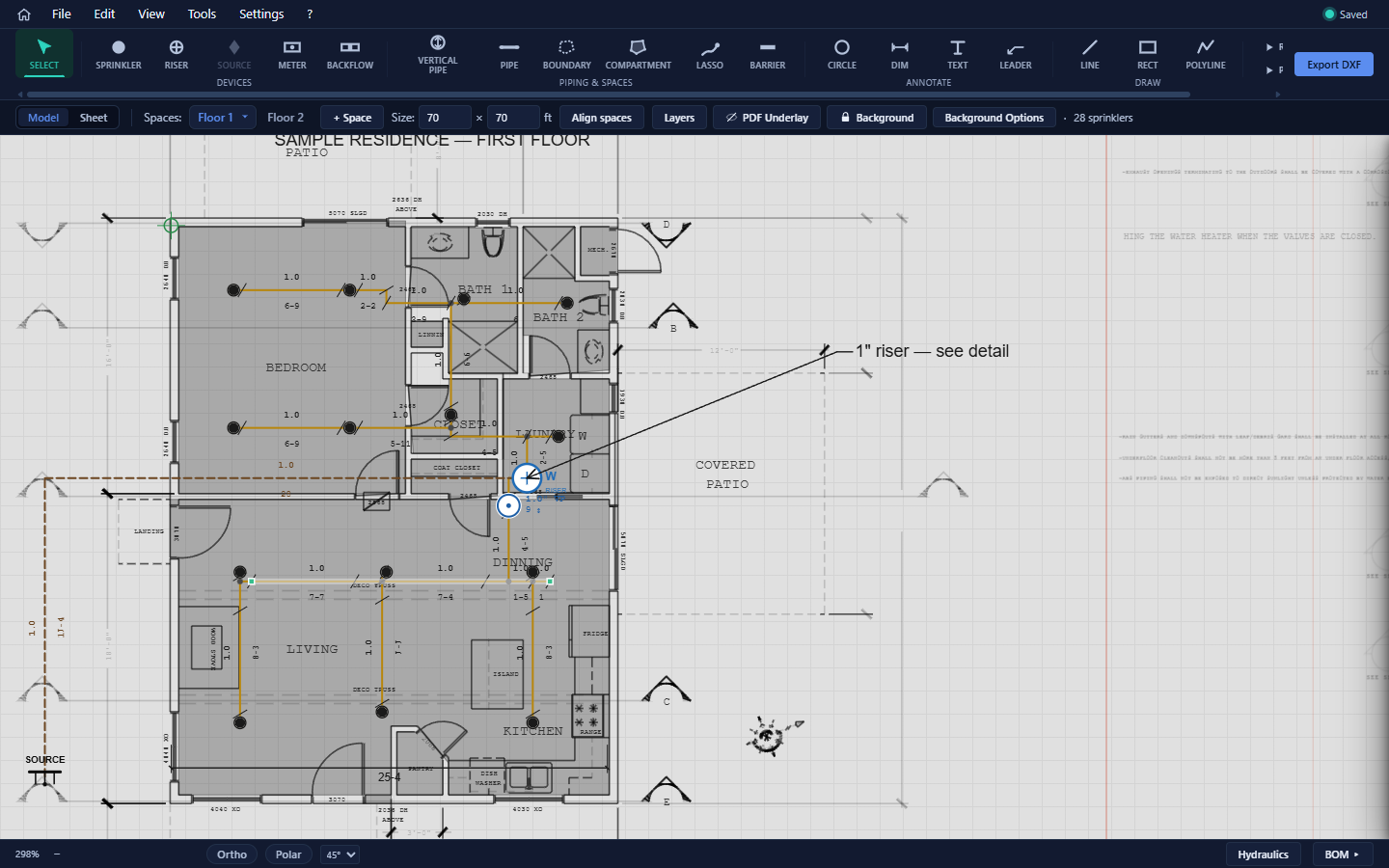
Every manual pipe becomes part of the routed tree's trunk. Draw your main where you want it — down the hallway, along the beam line — and auto-routing branches from it to the heads.
- Edit in the Inspector or by right-click: network (above-ground / underground), material, diameter.
- Endpoints drag with snapping; the whole pipe translates.
- Deleted a routed span you didn't like, and it came back on the next route? Draw the run you do want as a manual pipe — that pins it.
Running the router
- ▶ Route Pipes (tool dock) or Edit → Run auto-route on all — route now.
- Edit → Auto-route on edit (also in Settings) — when on, the network re-routes automatically after every layout change. When off, the network freezes and is saved with the project.
- Edit → Optimize selected line — straightens/re-optimizes just the selected routed run.
What the router honors:
- Barriers — routed pipe never crosses a barrier line. Draw barriers along bearing walls you can't penetrate.
- The space boundary — if the space has one, pipe stays inside it.
- T-junctions — branches tap mid-pipe, inheriting the host pipe's material and diameter.
- Manual pipes — always in the tree, never rerouted away.
There is no 3-D routing. Floors connect through vertical pipes feeding the underground/riser plane, and the router treats each space as its own 2-D problem — which matches how residential systems are actually laid out.
Editing routed pipe
Select any routed segment:
- Material / diameter — Inspector chips or right-click (choices come from the pipe table). Select several segments to bulk-edit; mixed values show "varies".
- Drag the segment body perpendicular to its run to shift it; drag its end handles to slide the junctions.
- Labels — right-click → Show material labels on all pipes; drag a label along its pipe to place it.
- Delete removes the span (the next full re-route may legitimately re-grow pipe there — pin with a manual pipe instead if you're overriding the layout).
Pipe defaults & converting materials
View → Pipe defaults… sets what new pipe is made of, per network:
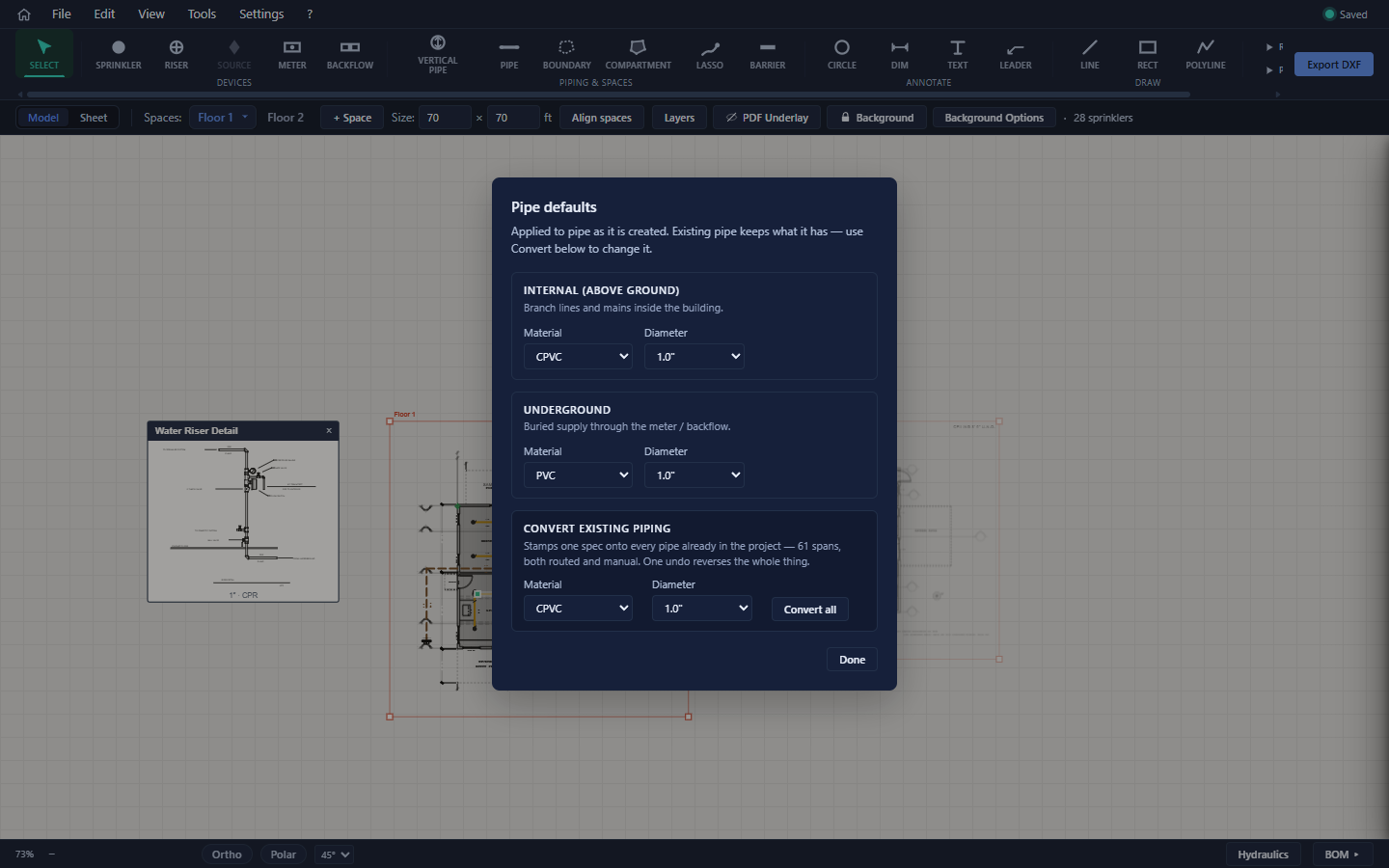
- Internal (above ground) — default 1″ CPVC.
- Underground — default 1″ PVC.
- Convert existing piping — stamps one material/diameter onto every span in the project (routed and manual). One undo reverses the whole conversion.
Vertical pipes (multi-floor)
A vertical pipe is the riser/drop connecting two stacked spaces:
- Make sure the two spaces are aligned (chapter 5 — the tool's tooltip walks you to it if not).
- Arm Vertical Pipe, click the location, and enter the length (default 9 ft; accepts
9-6) and diameter.
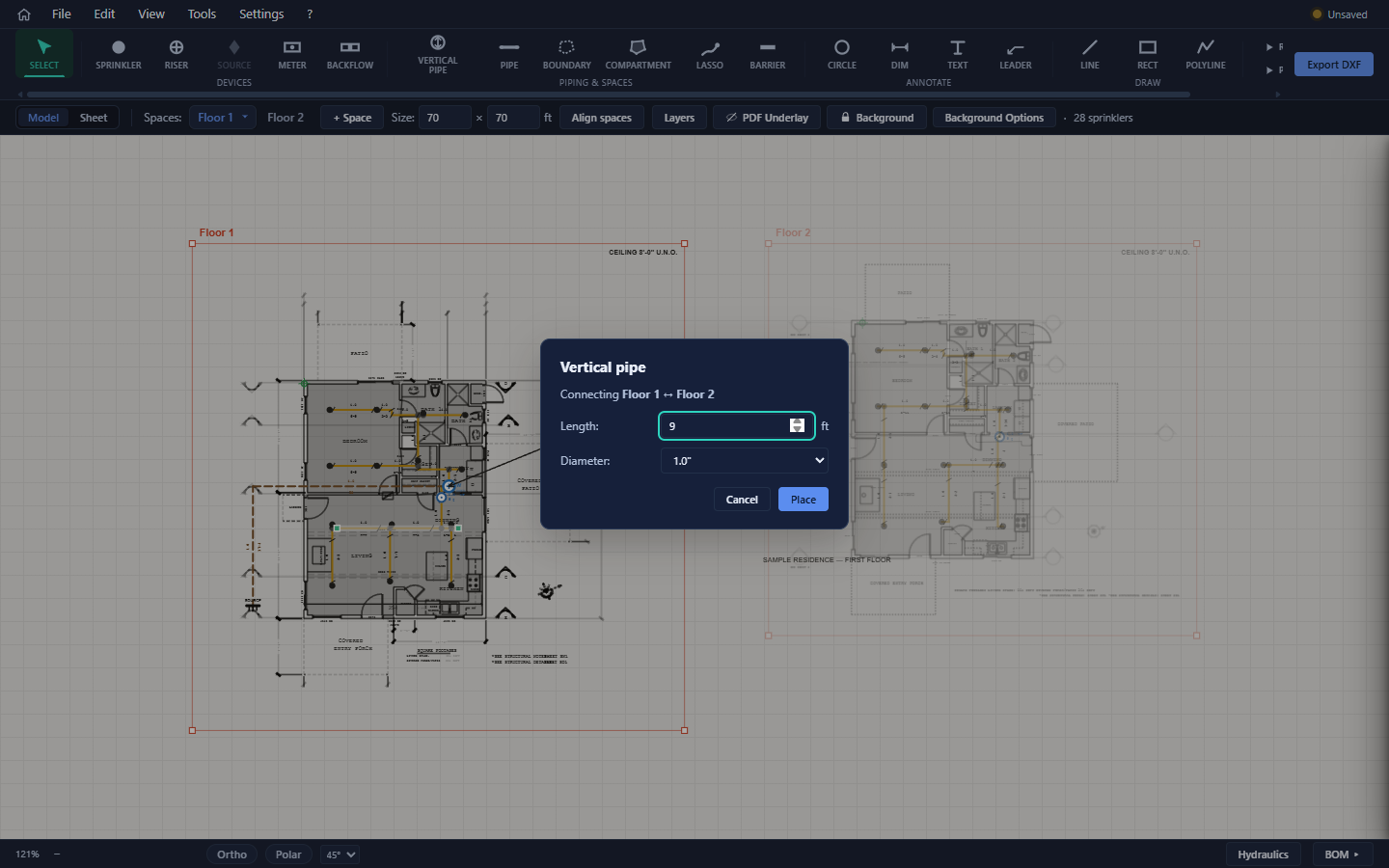
The pipe appears as a linked terminal on both spaces — drag one and the partner follows. Right-click → Edit length to change it later. Upper-floor sprinkler elevations are computed through this pipe from the lower floor's ceiling.
Barriers and boundaries
- Barrier — two-click wall line the router must respect. Draggable by endpoint or whole line.
- Boundary — one polygon per space; click vertices, Enter (or click the first vertex) to close. With a boundary present the tool button clears it instead.
A boundary that doesn't actually contain the space's sprinklers is ignored — the floor routes unconstrained. If routing seems to ignore your boundary, check that the heads are inside it.