Drawing & Editing
This chapter covers the editor's core mechanics: the tools, selection, precise input, and the editing commands that work on everything.
The tool dock

| Group | Tools |
|---|---|
| — | Select — the arrow; Esc always returns here. |
| Devices | Sprinkler · Riser · Source (one per plan) · Meter · Backflow |
| Piping & spaces | Vertical Pipe · Pipe · Boundary · Compartment · Lasso · Barrier |
| Annotate | Circle · Dim · Text · Leader |
| Draw | Line · Rect · Polyline |
| Actions | ▶ Route Pipes · ▶ Place Sprinklers (appears when the space has detectable background geometry) |
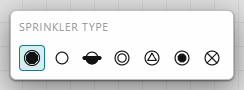
Click a tool to arm it; click it again (or press Esc) to disarm. While a tool is armed, a placement banner at the top of the canvas tells you exactly what the next click does (you can silence these under Settings → Hide tool placement tips), and a tool options panel appears for tools with choices — the sprinkler type row, the riser type, annotation color and size.
Selecting
| Do this | To get |
|---|---|
| Click | Select the topmost object under the cursor. |
| Shift+click | Add/remove from the selection. |
| Drag on empty canvas left→right | Window select (solid blue) — only objects fully inside. |
| Drag on empty canvas right→left | Crossing select (dashed green) — anything touched. |
| Alt+click or Tab | Cycle through overlapping objects. The Inspector lists "N objects at this point" — click through them there too. |
| Ctrl+click | Select a single member inside a group. |
| Double-click a space | Make that space active. |
| Esc | Clear the selection (and cancel whatever's in progress). |
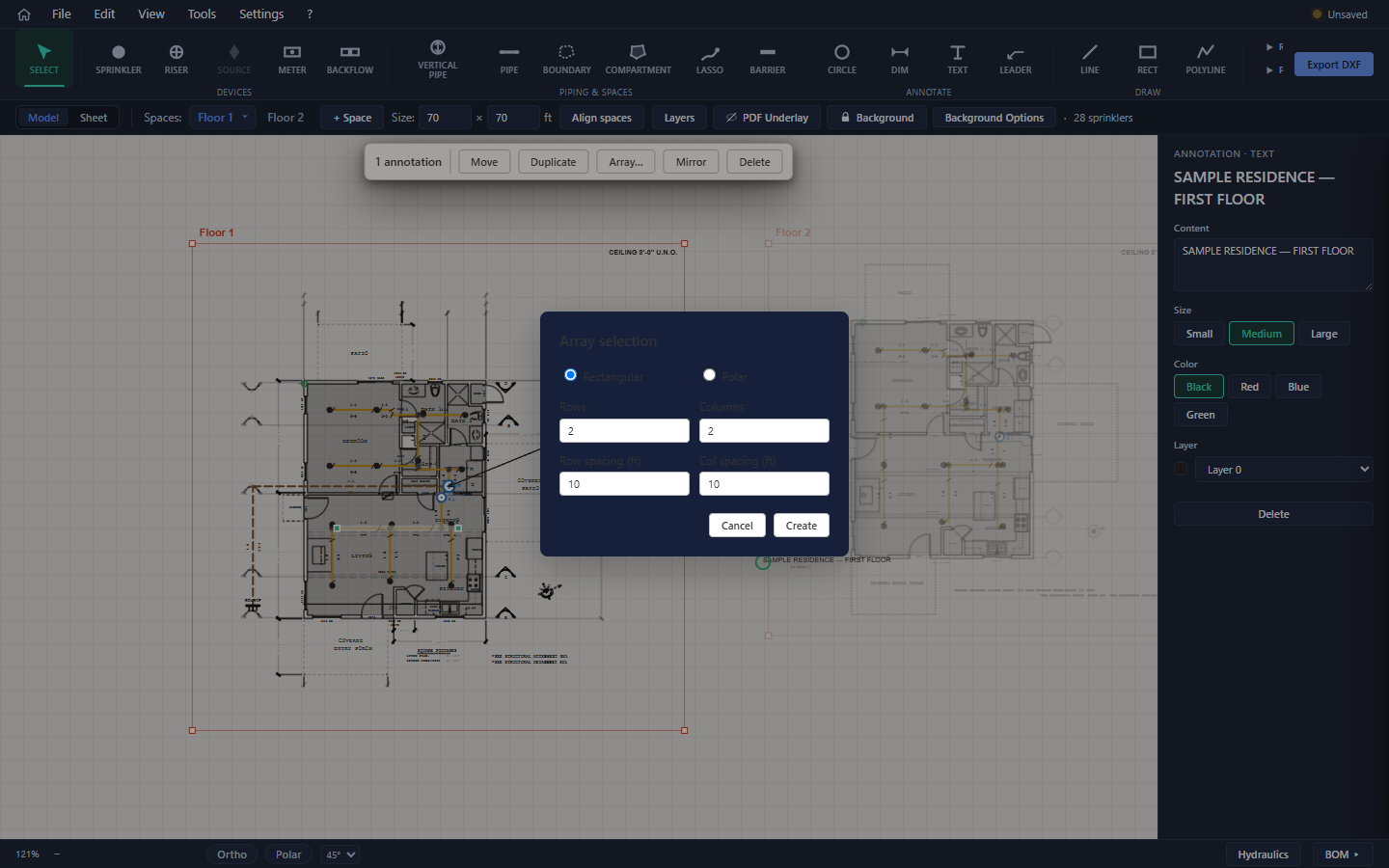
With two or more objects selected, the selection bar floats at the top of the canvas showing the tally ("3 sprinklers + 1 barrier") and the bulk actions:

Moving, copying, arraying
- Move / Duplicate (selection bar) — click a reference point, then the destination. Both respect snaps, Ortho/Polar, and typed lengths.
- Nudge — arrow keys move the selection 1 ft; Shift+arrows 0.25 ft.
- Duplicate in place — Ctrl+D.
- Array… — rectangular (rows × columns with spacings) or polar (count + fill angle around the selection's center).
- Mirror — Ctrl+M, then click two points to define the axis. A mirrored copy is created.
- Delete — Delete or Backspace; removes entities and routed pipe spans alike.
Precision: snaps, Ortho, Polar, typed input
Object snapping
The cursor snaps to geometry as you draw: Endpoint, Midpoint, Center, Intersection, Perpendicular, Nearest (Nearest is off by default). Toggle the master switch or individual types under View → Snapping — and hold Shift to bypass snapping for one pick. Snap targets include your design and the locked background, which is how you trace an imported plan accurately.
Ortho and Polar
The status strip's chips:
- Ortho (F8 — works even while typing) locks new lines to horizontal/vertical.
- Polar snaps line angles to an increment — 90°, 45°, 30°, or 15°, chosen in the dropdown beside the chip.

Typed lengths and angles
During any two-click draft (a pipe, a barrier, a Move…), the status strip's X/Y readout becomes editable L and ∠ fields. Type a length — decimal feet (12.5) or feet-inches (9-6) — and/or an angle, then press Enter to commit exactly. Circle annotations show R (radius) instead.
Right-click menus
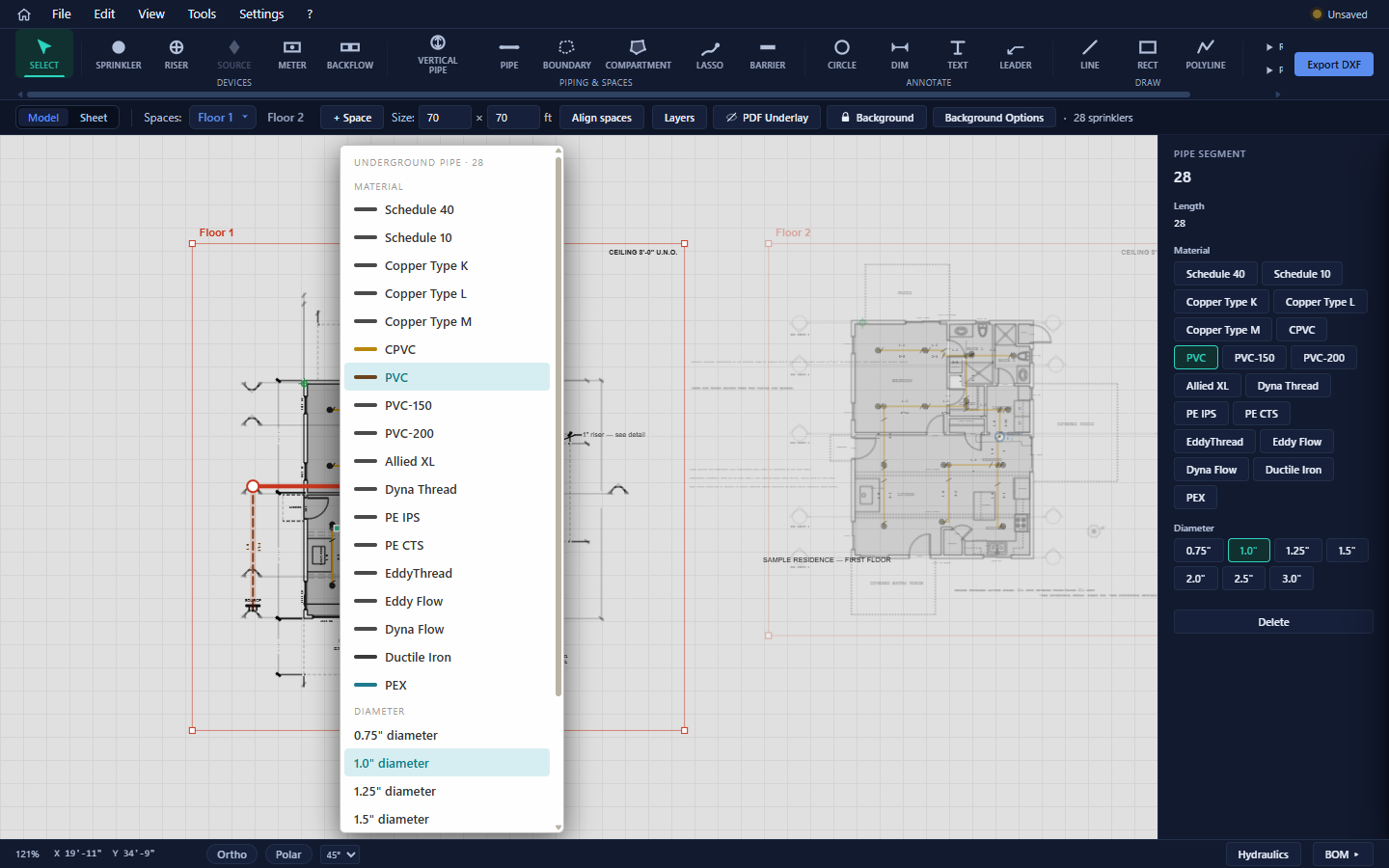
Every entity has a context menu with its most-used edits — a sprinkler's type/K-factor/part number, a pipe's material and diameter, an annotation's text and color, rotate for meters/backflows, delete for everything. Right-click is also the quick way to finish a polyline.
Drawing plain linework
The Draw group (Line, Rect, Polyline) creates plain project linework — geometry that isn't a sprinkler-system entity: property lines, equipment outlines, site details. It lives on your drawing layers, takes per-entity or by-layer color, and exports to DXF.
- Line — two clicks. Rect — two opposite corners. Polyline — click vertices, finish with Enter or right-click.
- Related: selected drawing linework can be flattened into the background, and background entities can be lifted out into editable linework — see chapter 9.
Drawing rooms by hand
When detection can't see a room (scanned plan, unusual geometry), draw it:
- Compartment — click the room's corners, Enter to close.
- Lasso — press and drag a rough stroke around the room; it snaps itself to the nearest walls. Usually faster than the polygon tool.
Editing any compartment: drag its corner handles; click a midpoint dot to add a corner; Shift+click a corner to remove it; select two rooms and press Ctrl+M to merge them.
Undo, redo, and safety
- Ctrl+Z undoes, Ctrl+Shift+Z or Ctrl+Y redoes — 50 levels, covering the entire model including routed pipe.
- Bulk operations — an auto-place run, a whole import session, a "convert all piping" — are single undo steps.
- File → Clear all wipes the model (undoable, but it will ask a lot of you — prefer New Project).